How to Rig and Animate a Semi-Trailer Truck in Blender

In this tutorial, you will learn how to rig and animate a Semi-Trailer Truck in 8 minutes using Blender 2.83.
Video tutorial
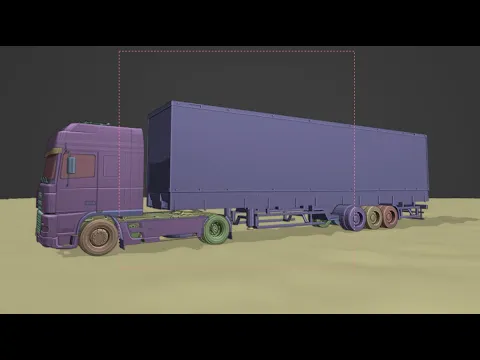
What you will need
- Blender version 2.8 or higher
- The truck/puller and Trailer models separated into two different collections/layers. The wheels should be separate from the body.
- Blender Rigacar addon. Available at GitHub in the following link https://github.com/digicreatures/rigacar/releases/download/v6.0/rigacar.v6.0.zip (Thanks to David Gayerie of digicreatures.net for this amazing addon)
The rigging process
- Install Blender Rigacar addon after downloading from the link above
- Ensure your truck and trailer model is facing “Y (negative Y) direction in the blender viewport. The wheels should touch the top of the grid, like standing on it.
- Apply Location, Rotation, and Scale transformations.
- Select every object in the scene and set the origin to geometry.
- Rename the wheels and body control objects as follows to let the add-on discover the structure of your models (See image below): Semi-Trailer trailer naming guide for rigging in blender

Rigging the truck/puller
- Hide the trailer by clicking on the trailer collection eye icon in the layout panel.
- Select all objects of your Truck model by clicking ‘A’ on your keyboard. Then click Shift+A. In the drop-down go to Armature then select Car (deformation rig). Rig a car addon will automatically generate an armature and parent the wheels and body to their respective control bones.
- In object mode, select the new armature. Click N on your keyboard to reveal the properties panel and go down to the Rigacar tab.
- Click on Generate. Your truck is rigged now.
- Add an empty and place it under the truck as displayed. Rename it to Couplin (see image below)

Parent the Couplin to the TRUCK-Body
Rigging the trailer
- Hide the truck by clicking on the truck collection eye icon in the layout panel.
- Repeat the same process from step 2 to 3 under ‘Rigging the truck/puller’
Animating your truck and trailer
We are going to start with the trailer then the truck. It is easier that way.
Animating your trailer
- Add a curve path and model the path you want your trailer to pass.
- In pose mode, select the Root bone of your trailer and go to bone constraints. Add a Follow Path constraint. On Target section, select NurbsPath.
- Still on the Follow Path constraint tab, tick Follow Curve and Fixed Position options. On Forward, select Y (negative Y). Now when you move the Offset value between 0 and 1, the trailer moves along the NurbsPath.
- Add a plane that you will be using as ground or road. Place it on the same position as the grid.
- Make the plane slightly uneven using the displacement modifier. Then apply Location transformation by clicking Ctrl then A then selecting Location.
- Select the trailer armature and go to pose mode.
- Click N to reveal the properties panel
- On the Rigacar tab, select one picker at a time to select your plane/road as shown in the video above.
- In pose mode when you select the Root bone of your trailer and move the Offset value of the Follow Path, constraint, it moves and reacts to the uneven road.
- On theRigacar tab, change Wheels on Y-axis value from 0 to 1. Click on Bake wheels rotation.
Animating the truck
- In pose mode, select the Root bone of the truck. Repeat the same process from step 3 to 4 under ‘Animating your trailer’
- Move the Offset value of your truck until it is right in front of your trailer as a normal trailer. Note the difference between trailer and truck Offset values somewhere on paper.
- On frame 1, insert keyframes on the trailer and truck Offset, values by clicking the letter I on the keyboard.
- Go to the last frame in the timeline and move your truck’s Offset value to 1. Insert another keyframe.
- Still, on the last frame, move your trailer’s Offset value to 1 minus the difference you noted on paper. Insert another keyframe of the new Offset value.
- Repeat the same process on your truck as step 9 under ‘Animating your trailer’. Then click on Bake car steering. Play your animation and the truck and trailer will move along the path.
- In pose mode, add a Damped Track constraint to the Root bone of your trailer. Under Target select the Couplin. To select Y (negative Y). Now your trailer appears hooked to the truck when in motion.
If you have any questions, put them in the comment section below. Request for project assistance from one of our professional animators here. Check out more animation and visual effects tutorials here.

17 Comments
Join the Conversation
Nice tutorial. Thank you!
Most welcome Alex. Subscribe for more.
I have parent the truck body to the couplin
But when following a path the trailer goes through the truck.
The couplin moves to the front
It means the trailer offset value is higher than that of the truck. Try to adjust it at the beginning of the path.
I have no idea what to set at the beginning of th path couplin the trailer ?
Check this out, it will assist with this >>> https://youtu.be/VSMCHbSUUBQ?t=213
Thanks i already did that.
Thanks i did not understand offset value i am dutch but it means the starting point. There is no translation for offset value =
Offset waarde. We dutch take over english words in our dutch language. I have no idea why.
I will make a new forward path with a better offset value.
Thanks sofar.
Greetings Anton
Ye now it works thanks.
Most welcome.
Unfortunately the coupling or offset value did not the trick. The trailer still goes through the front truck. How can i prevent the coupling is going through the front from the truck.
We normally do the offset adjustment for it to work. Check your trailer's center of origin position.
Yes that is good the problem is the origin which is moving to the front from the truck. I think i have to parent it to something else.
The trailer origin should be at the center of the middle axle.
Oke i will check that thanks
My trailer has no middle axle.
What now. Ithe trailer has only wheels no axle
Put the origin between the two center wheels.