
Node Wrangler Shortcuts Every Blender Artist Should Know
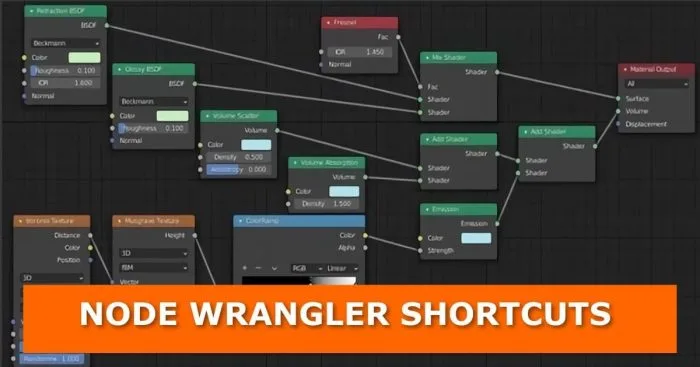
If you’ve ever spent ten minutes clicking around the Shader Editor just to connect a few nodes, this article is for you.
Node Wrangler is a free add-on that comes bundled with Blender, and it is one of the most powerful workflow tools available for anyone working with nodes. It is packed with shortcuts that cut out repetitive clicking, auto-connect nodes intelligently, set up entire texture rigs in seconds, and keep your node trees clean and readable.
The add-on works across Shader Editor, Compositor, Geometry Nodes, and Texture Nodes — so whatever you’re building in Blender 4.2 or above, Node Wrangler has something useful for you.
You don’t need to memorise all of them at once. Learn five, use them daily, and they will become second nature. Then add more. That’s the approach that actually sticks.
Let’s get into it.
How to Enable Node Wrangler in Blender 4.2
Before anything else, you need to switch Node Wrangler on. Here’s how:
- Go to Edit > Preferences.
- Click the Add-ons tab.
- In the search bar, type Node Wrangler.
- Check the box next to Node: Node Wrangler to enable it.
That’s it. Node Wrangler is now active.
Important note for Blender 4.2 users: Starting with Blender 4.2 LTS, Blender shifted most bundled add-ons to the Extensions Platform. Node Wrangler is still included with Blender and can be enabled through Preferences as above, but if you ever need to reinstall it, you can also find it at extensions.blender.org. Simply drag and drop it into Blender, or install it from disk via Preferences.
Once enabled, you can access Node Wrangler’s tools in two ways: through the N Panel sidebar in any node editor (look for the Node Wrangler tab), or by pressing Shift + W to bring up the quick access menu directly in the node editor.
You can also view the full shortcut list by expanding the Node Wrangler entry in Preferences and clicking Show Hotkey List.
Related: How to Install Add-ons in Blender
Why Node Wrangler Is Worth Learning
Working with nodes without Node Wrangler is like editing a video without keyboard shortcuts — you can do it, but it takes far longer than it should.
Node Wrangler lets you:
- Connect nodes without clicking tiny sockets
- Preview any node’s output with a single shortcut
- Set up an entire PBR texture workflow in two keystrokes
- Merge, mute, delete, and organise nodes in seconds
- Keep your node tree readable and clean without manual work
Whether you’re building a complex material in the Shader Editor, compositing in the Compositor, or building a Geometry Nodes setup, these shortcuts apply and will speed you up considerably.
Related: Easy Way to Organise, Apply and Reuse PBR Textures in Blender
The Essential Node Wrangler Shortcuts
1. Add a Node — Shift + A
This one is not exclusive to Node Wrangler — it’s Blender’s native shortcut for opening the Add menu in the node editor. But it’s the first shortcut you use in every session, so it belongs at the top of this list.
Press Shift + A anywhere in the node editor to bring up the full menu of available nodes. From here you can search by name or browse by category.
2. Preview Any Node’s Output — Ctrl + Shift + LMB
This is probably the most-used Node Wrangler shortcut for anyone building shaders or working in the Compositor.
Hold Ctrl + Shift and left-click on any node to instantly preview that node’s output in the 3D viewport. Node Wrangler connects the selected node directly to the Material Output or World Output automatically, creating a temporary viewer setup so you can see exactly what that node is producing.
Click it again while holding the same keys to cycle through the node’s available outputs.
To restore your original material output, simply Ctrl + Shift + LMB on the final node in your chain.
This shortcut works in the Shader Editor and Compositor. In Geometry Nodes, only Geometry-type outputs can be connected to the final output this way — for other output types, use Geometry Nodes’ own Viewer Node instead.
3. Quick Texture Setup — Ctrl + T
Select any texture node (like an Image Texture node) and press Ctrl + T. Node Wrangler automatically adds a Texture Coordinate node and a Mapping node, and connects everything up for you.
This is the shortcut that saves the most time on a per-session basis for texture artists. What would normally take six or seven clicks and some manual socket-dragging happens in an instant.
4. Principled Texture Setup — Shift + Ctrl + T
This is the big one for PBR materials.
Select a Principled BSDF node, press Shift + Ctrl + T, and Blender opens a file browser. Select your texture map files — your Base Color, Roughness, Normal Map, Metallic, and so on. Node Wrangler reads the file names, identifies what each map is, creates the correct nodes, and connects them all to the right inputs on the Principled BSDF automatically.
Setting up a full PBR material that would take dozens of clicks is reduced to a few. This is one of the most powerful features in Node Wrangler, and it’s a massive time-saver for product rendering and environment work.
Related: Blender Material Addons
5. Lazy Connect — Alt + RMB Drag
Tired of zooming in to click tiny sockets? Lazy Connect lets you link two nodes without targeting the exact socket.
Hold Alt and drag with the Right Mouse Button from one node toward another. Node Wrangler figures out the best connection between them based on socket names, types, and whether they’re already occupied, and makes the link for you.
For a more precise version, use Shift + Alt + RMB — this brings up menus showing all available inputs and outputs so you can select the exact sockets you want to connect.
6. Add a Reroute Node — Shift + RMB Drag
Node trees get messy when noodles cross each other. Reroute nodes let you redirect connections cleanly.
Hold Shift and drag with the Right Mouse Button across a noodle to insert a Reroute node on it. Press G to move the reroute point wherever you need it. This keeps complex node trees readable and avoids the “tangled noodle” problem that makes large setups hard to follow.
7. Erase a Noodle — Ctrl + RMB Drag
Need to remove a connection? Hold Ctrl and drag with the Right Mouse Button across any noodle to cut and disconnect it. You can slice through multiple noodles in one drag.
This is much faster than clicking a socket and manually unlinking it, especially when you need to clean up several connections at once.
8. Merge Nodes — Ctrl + Numpad Keys
When you want to combine two nodes with a Mix or Math node, Node Wrangler can insert the merge node and wire everything up automatically.
Select two nodes, then use:
- Ctrl + Numpad 0 — Merge with a Mix node (automatic mode)
- Ctrl + Alt + Numpad 0 — Force a Mix node
- Shift + Ctrl + Numpad 0 — Force a Math node
- Ctrl + Numpad + — Merge with Add mode
- Ctrl + Numpad – — Merge with Subtract mode
- Ctrl + Numpad / — Merge with Divide mode
- Ctrl + Numpad * — Merge with Multiply mode
Node Wrangler detects the output types of the selected nodes and chooses the appropriate merge node automatically — Color outputs use Mix nodes, Value outputs use Math nodes.
You can also cycle through blend modes on existing Mix or Math nodes by selecting them and pressing Alt + Up or Alt + Down.
9. Switch Node Type — Alt + S
Select a node and press Alt + S to switch it to a related type while keeping all existing connections intact.
For example, you can switch between different shader types (Diffuse, Glossy, Principled), or swap an Invert node for a Math node. This is useful when you want to experiment with different approaches without rebuilding your connections from scratch.
To swap the output connections between two nodes, select both and press Alt + Shift + S.
10. Duplicate a Node — Shift + D
Select a node and press Shift + D to duplicate it. This creates an exact copy that you can position wherever you need.
For a more connected duplication, use Shift + Ctrl + D — this duplicates the node and keeps all input connections from the original attached to the copy. Extremely useful when you want to try a variation while keeping the original setup intact.
11. Create a Frame — Ctrl + J
Select a group of nodes and press Ctrl + J to wrap them in a Frame node. You can then name and colour the frame to label sections of your node tree — for example, “Roughness Setup” or “Normal Map Input.”
This is the primary way to keep large node trees organised and readable, especially when you share files with other artists or return to a project after time away.
12. Delete Unused Nodes — Alt + X
Once you’ve finalised your node setup, press Alt + X to delete any nodes that are not contributing to the final output. Node Wrangler identifies orphaned nodes and removes them after a confirmation prompt.
Note: Before running this, make sure any Viewer nodes created during previewing are removed or properly linked — otherwise Node Wrangler may misidentify the correct path to the output.
13. Mute a Node — M
Select any node and press M to mute it. The node stays in place but stops affecting the output — Blender bypasses it as if it weren’t connected. This is a non-destructive way to test what your material looks like without a particular node, without having to delete or disconnect anything.
Press M again on the same node to unmute it.
14. Link Active to Selected — K
This shortcut connects the active node (the last selected, highlighted in brighter orange) to all currently selected nodes.
Press K to link to all selected nodes. Press Shift + K to force the link even if connections already exist on those nodes.
There are also more specific linking options:
- ‘ (apostrophe) — Link only to nodes with the same label as the active node
- ; (semicolon) — Link only when output names match input labels
These are particularly powerful in the Compositor when connecting Render Layers to multiple image outputs.
15. Align Nodes — Shift + =
Select multiple nodes and press Shift + = to align them horizontally or vertically. A menu appears letting you choose the axis. This quickly tidies up a messy section of your node tree without manually adjusting positions one by one.
16. Refresh Images — Alt + R
If you’ve edited a texture in an external application like Photoshop or GIMP and want Blender to update without closing and reopening the file, press Alt + R to refresh all image textures in your current node tree.
17. Quick Access Menu — Shift + W
Not sure which shortcut you need? Press Shift + W anywhere in the node editor to open Node Wrangler’s quick access menu. It lists all available tools so you can either click the one you want or use it as a reminder while you’re learning the shortcuts.
This is a great menu to pull up when you’re starting out — you don’t have to memorise everything immediately.
Customising Your Node Wrangler Shortcuts
If any of the default shortcuts conflict with your existing keymap or simply don’t feel right, you can change them.
Go to Edit > Preferences > Keymap, search for Node Wrangler, and you’ll see every shortcut listed. Click any entry to reassign it to a different key combination. Changes are saved with your preferences.
Getting the Most Out of Node Wrangler
A few practical habits that make Node Wrangler even more effective:
Use Ctrl + T immediately when you add a texture node. Don’t connect it manually — let Node Wrangler wire the Texture Coordinate and Mapping nodes for you every time.
Use Ctrl + Shift + LMB constantly while building shaders. Previewing individual nodes as you build is the fastest way to catch problems before your material gets complex.
Frame your node groups as you go (Ctrl + J), not after. Labelling sections while you build keeps the tree readable without the cleanup work at the end.
Use Alt + X before you consider your material done. You’d be surprised how many leftover test nodes accumulate during a session.
Related: An Easy and Quick Way to Post Process Your Work in Blender
Related: How to Add More Than One Material to a Mesh in Blender
Related: Blender Glare Node for Cycles Glow and Bloom
Related: How to Create a Realistic Glass Material in Blender Eevee
Related: Blender Subsurface Scattering
A Quick Reference: All the Shortcuts in One Place
Here is a summary of all the shortcuts covered in this article for easy reference:
- Shift + A — Open the Add Node menu
- Ctrl + Shift + LMB — Preview any node’s output in the viewport
- Ctrl + T — Add Texture Coordinate and Mapping nodes to a texture node
- Shift + Ctrl + T — Principled texture setup (auto-connects PBR maps to Principled BSDF)
- Alt + RMB Drag — Lazy Connect two nodes automatically
- Shift + Alt + RMB Drag — Lazy Connect with socket selection menus
- Shift + RMB Drag — Insert a Reroute node on a noodle
- Ctrl + RMB Drag — Cut/erase a noodle
- Ctrl + Numpad 0 — Merge nodes with auto Mix node
- Alt + S — Switch node type (keeps connections)
- Alt + Shift + S — Swap output connections between two nodes
- Shift + D — Duplicate a node
- Shift + Ctrl + D — Duplicate with connected inputs
- Ctrl + J — Wrap selected nodes in a Frame
- Alt + X — Delete unused nodes
- M — Mute/unmute a node
- K — Link active node to all selected nodes
- Shift + = — Align selected nodes
- Alt + R — Refresh all image textures
- Shift + W — Open the Node Wrangler quick access menu
Share What You’ve Learned
Have you been using Node Wrangler already, or is this your first time enabling it? Which shortcut surprised you the most? Drop a comment below — I’d genuinely like to hear which ones you’ll be using first.
If you’ve got a Node Wrangler tip that isn’t on this list, share it in the comments too. Other readers will appreciate it.
Have questions about any of these shortcuts? Ask directly in the comments and I’ll answer.
Start Building Faster — Right Now
If this guide has been useful to you, subscribe to the blog so you don’t miss new Blender tutorials. Share this post with someone who’s still clicking nodes the long way around — it’ll save them hours.
This article is updated regularly as Blender evolves, so check back to make sure you always have the most current shortcut list.
For more Blender materials and shading tutorials, explore the full Tutorials section.

What do you think?
Join the Conversation