Best Blender Material Addons for EEVEE and Cycles in 2026
You have spent hours modeling a scene in Blender, and then you hit the Shader Editor. The metal looks like plastic, the wood looks like metal, and somehow forty-five minutes just disappeared into a node graph. That is the moment a good material addon earns its keep: the right one turns that frustrating loop into a few clicks, so you spend your time art-directing a look instead of wiring up a Principled BSDF from scratch.
In this guide, we cover the best Blender material and texturing addons for Blender 5.2 LTS and 4.5 LTS — the two long-term support versions most studios are running right now — what each one does, who it is actually for, and where to get it. We have also pulled out anything that has quietly gone stale since our last update, added the newer procedural and asset-browser tools worth your attention, and folded in a look at how AI is starting to change material creation in Blender too.
What You Need to Know About Blender’s Extensions Platform
If you are still on Blender 4.1 or earlier, the biggest change you will notice is that Blender no longer bundles most addons with the software. Since Blender 4.2, tools that used to ship in the box — Node Wrangler included — live on the built-in Extensions platform instead. You will find it under Edit → Preferences → Extensions, and it works a lot like a plugin marketplace baked directly into Blender.
Blender has moved fast since then. The current long-term support release is Blender 5.2 LTS, with Blender 4.5 LTS still officially supported into 2027 if your studio pipeline is not ready to jump yet. Every addon in this list has been checked against both. If you are still deciding when to upgrade your own pipeline, our breakdown of how to increase or decrease the undo steps limit in Blender and how to change units of measurement in Blender are both good first stops for setting up a clean new install.
1. Node Wrangler
Best for: Every single person who touches materials in Blender
Node Wrangler is not a material library, but it remains the single most important tool for working with materials in Blender, full stop. Install it from Edit → Preferences → Extensions, or grab it directly from extensions.blender.org.
Once it is enabled, Ctrl+Shift+T loads an entire PBR texture set — albedo, roughness, normal, displacement — with a single click, and Ctrl+Shift-clicking any node previews its output directly in the viewport. If you have not memorized the Node Wrangler keyboard shortcuts yet, that is the fastest upgrade you can make to your shading workflow today.
Cost: Free — install via the Extensions platform
2. Extreme PBR Nexus
Best for: Artists who want a massive, ready-to-apply PBR material library
Extreme PBR Nexus is one of the most complete paid material libraries on the market, with more than 1,800 physically based materials covering wood, metal, concrete, fabric, and stone, each with properly built roughness, normal, and displacement maps already wired up.
What makes it worth the price is the in-Blender browser: you preview materials before committing to them, then tweak roughness and displacement without ever opening the Shader Editor. It runs cleanly in both Cycles and EEVEE Next.
Key features:
- Over 1,800 ready-made physically based materials
- Adjustable parameters directly in the addon panel
- Full Cycles and EEVEE Next support
3. BlenderKit
Best for: Anyone who wants a genuinely useful free starting point
BlenderKit is a community-built asset library that installs as an addon and adds a search bar straight into Blender. It gives you free access to tens of thousands of materials, plus thousands of free models, HDRIs, and brushes, contributed by a large and active community of artists.
For quick prototyping or filling out the background of a scene, it is hard to beat, and the free tier alone is genuinely usable long-term. A paid subscription unlocks the rest of the library if you need more.
Key features:
- Tens of thousands of free materials, models, and HDRIs
- Drag-and-drop workflow straight into your scene
- Royalty-Free and CC0 licensed assets
- Cycles and EEVEE support
4. Fluent: Materializer
Best for: Building your own custom, worn-in materials without touching a node graph
Fluent: Materializer takes a layer-based approach that will feel instantly familiar if you have ever used Photoshop or Substance Painter. Instead of wiring nodes by hand, you stack material layers and blend them together with built-in tools, which is a much faster way to build worn, dirty, or multi-surface looks.
It ships with a preset library and supports procedural generation, so you are not stuck relying on image textures for everything. Pairing it with a texture library like Poly Haven’s asset browser below gives you both fast starting points and deep custom control in the same workflow.
Key features:
- Layer-based workflow, no deep node knowledge required
- Library of built-in presets
- Advanced procedural material generation
5. Poly Haven Asset Browser
Best for: Artists who want a free, CC0 library with zero licensing headaches
Poly Haven has quietly become one of the most trusted names in free 3D assets, and this addon pulls its entire catalog — over 2,000 HDRIs, materials, and models — directly into Blender’s native Asset Browser, with automatic updates as new assets go live.
Every asset is released under a CC0 license, meaning there is genuinely no attribution requirement and no usage restriction, commercial or otherwise. HDRIs come standardized at 16K, materials at 8K minimum, and a one-click “Fix Texture Scale” button and a “Set Up Displacement” button handle two of the most annoying manual steps in texturing. The library also ships tree and grass assets built on geometry nodes, so you can drag a fully proceduralized ground cover system straight onto a terrain mesh.
The addon itself is not free — purchasing it (or backing Poly Haven’s Patreon at $5/month) supports the team creating all of that free content in the first place, and gets you early access to new assets before they hit the public site.
Key features:
- Over 2,000 CC0 HDRIs, materials, and 3D models
- Direct integration with Blender’s native Asset Browser
- One-click texture scale fixing and displacement setup
- Geometry-nodes-based grass and tree systems
6. Materialiq
Best for: A clean, performance-optimized library you can customize without nodes
Materialiq is a well-organized library covering the usual suspects — wood, metal, stone, fabric, glass — with every material optimized to run cleanly in both Cycles and EEVEE. The interface stays out of your way, which is exactly the point.
Where it stands out is customization: each material exposes adjustable settings so you can adapt it to your scene without ever opening the node editor, and it now runs as an asset-browser-ready pack rather than a standalone bolt-on.
Key features:
- Wide range of realistic, ready-to-use materials
- Optimized for both major render engines
- Fully customizable without touching nodes
7. Realtime Materials for Blender
Best for: Fast, editable procedural materials with zero texture downloads
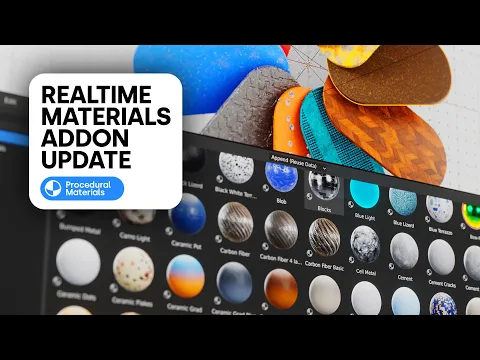
Realtime Materials is a library of more than 270 fully procedural materials — meaning nothing here relies on external image textures, so there is nothing to download, unpack, or lose track of later. Categories run from the practical (metal, wood, exterior stucco, cloth) to the more specialized (carbon fiber, terrazzo, hexagon patterns, camo), and every material exposes sliders for color, scale, roughness, and pattern direction right in the N-panel.
Because everything is node-based and procedural, materials scale cleanly to any resolution without going soft, and there is nothing to relink if you move a project between machines.
Key features:
- 270+ fully procedural, non-destructive materials
- No external textures to manage or relink
- Deep per-material customization: color, scale, roughness, pattern
- Works in both Cycles and EEVEE
Get Realtime Materials for Blender
8. Smartify Nodes
Best for: Making any material look like it has actually lived in the world
Most PBR material packs look great on a shader ball and then feel strangely artificial the moment you drop them into a real scene — because a clean material has no history. Smartify Nodes fixes that by letting you drag and drop “smart effects” onto any material you already have: moss, dust, sand, water puddles, edge wear, dead leaves, even alien growth, each with proper sliders for how aggressively the effect takes hold.
The clever part is the smart masking system underneath it — masks based on facing direction, world height, occlusion, and edges — so effects land in physically sensible places automatically, like moss gathering on upward-facing surfaces or grime pooling into cracks. Everything can also be masked manually by painting vertex colors, and a “Synch Effect” node lets you tweak one instance of an effect and have it update everywhere you have used it across a scene.
Key features:
- Drag-and-drop environmental effects for any material
- Smart masks based on facing, altitude, AO, and edges
- Vertex-paint overrides for full manual control
- A synchronize node to update an effect scene-wide from one place
9. Eevee + Cycles Materials System
Best for: Product and industrial designers who need one material that works everywhere
The Eevee + Cycles Materials System is built around a single idea: one material definition that renders identically in both EEVEE and Cycles, with no separate setup for each engine. It ships over 220 photoreal materials using triplanar mapping, which means no UV unwrapping is required at all — a genuinely big time-saver for product visualization and quick industrial design iteration.
It includes a free version of KIT OPS for kitbashing, a dirt node that adds altitude-mapped grime and ambient-occlusion wear to any material, and a full decal, bevel, and chipped-paint workflow. If you need to try ten paint finishes on a concept car in an afternoon, this is built for exactly that kind of rapid CMF (color, material, finish) iteration.
Key features:
- 220+ triplanar materials, no UV unwrapping needed
- Identical results in both EEVEE and Cycles
- Built-in dirt, decal, bevel, and chipped-paint workflow
- Includes a free copy of KIT OPS
Get Eevee + Cycles Materials System
10. Philogix PBR Painter
Best for: Multi-channel PBR painting without leaving Blender
Philogix PBR Painter had disappeared from Superhive’s storefront for a while, but it is back and actively maintained — the developer moved sales over to Gumroad, and version 4.2 is a genuinely deep texturing tool. It brings a Substance Painter-style layer system directly into Blender, letting you paint albedo, roughness, metallic, and normal data at the same time rather than juggling channels one at a time.
The layer system runs on two levels — material layers and channel layers — and supports five layer types (smart surface, image, anchor point, ID, and effect), which gives you a lot more structure than a flat stack of textures. It also supports both Metallic/Roughness and Specular/Glossiness workflows, uses mesh maps like curvature and ambient occlusion to drive its smart materials, and exports clean PBR texture sets when you are ready to move a model elsewhere.
Key features:
- Real-time multi-channel painting across albedo, roughness, metallic, and normal
- Two-level layer system with five layer types, including smart surfaces and ID masking
- Supports both Metallic/Roughness and Specular/Glossiness PBR workflows
- Custom, shareable smart materials plus a full PBR texture export pipeline
11. Komikaze: Toon Shaders and Assets Pack
Best for: Comic, anime, or cel-shaded looks
If your project needs a non-photorealistic look, Komikaze gives you more than 200 stylized shaders, modifiers, and compositor effects built specifically for a manga, anime, or Spiderverse-style aesthetic, and everything runs in real time in EEVEE.
It also ships text boxes, lens flares, and color palettes, which is a nice bonus if you are producing an illustrated sequence or a comic-style short rather than a straight animation.
Key features:
- 200+ toon shaders and modifiers with strong outlines and halftones
- Drag-and-drop from the Asset Browser
- Real-time EEVEE performance
- Comic-panel assets like speech bubbles and text boxes
12. Decal Master
Best for: Scratches, labels, and surface wear without touching UVs
Decals are normally one of the more painful jobs in Blender, and Decal Master solves it with a drag-and-drop system that projects decals straight onto a surface with no extra UV work required. You get full control over placement, scale, rotation, damage effects, and shading, plus support for normal-map stamps for extra detail.
If you build product renders or hard-surface models that need believable wear and tear, this earns its place in the toolbox fast.
Key features:
- Drag-and-drop decal placement with no UV setup
- Adjustable damage, blending, and shading controls
- Normal-map stamping for extra surface detail
13. 5000+ PBR Asset Browser
Best for: High-volume work that needs a huge library on tap
This addon plugs directly into Blender’s native Asset Browser and unlocks more than 5,000 categorized PBR materials at 2K resolution. If you are swapping materials constantly across different client projects, having that much variety a drag-and-drop away is a genuine time saver.
Key features:
- 5,000+ categorized PBR materials
- 2K resolution textures
- Native Asset Browser integration
14. Rapid PBR Material Creator
Best for: Turning a folder of downloaded textures into a material in one click
If you regularly pull texture sets from sites like Poly Haven or AmbientCG, Rapid PBR Material Creator saves you the tedious part: point it at a folder and it builds the complete node graph — diffuse, roughness, metallic, normal, displacement — automatically. It supports both Metallic/Roughness and Specular/Glossiness workflows, and a one-click “Update Materials” button reloads everything if you have re-baked or re-edited a texture externally.
Key features:
- One-click PBR node setup from any folder of texture files
- Supports both major PBR workflows
- One-click reload when source textures change
Get Rapid PBR Material Creator
15. Crafty Asset Pack
Best for: A general-purpose starter kit beyond just materials
Crafty Asset Pack goes past pure materials to include particles, grunge maps, patterns, and small models, all set up for the Asset Browser and covering fur, metal, wood, and more. All updates are free, and the pack has kept pace with new Blender versions since launch.
Key features:
- 60+ materials plus grunge maps, patterns, particles, and models
- Free lifetime updates
- Compatible with Cycles and EEVEE
A Quick Note on Layer Painter
Longtime readers may remember Layer Painter from earlier versions of this list. It is worth flagging that the original paid version has been discontinued and is no longer sold or updated on Superhive — the developer open-sourced it instead, and it now lives on as a community-maintained project on GitHub. If layer-based texture painting is what you are after today, Fluent: Materializer above covers the same workflow with active, ongoing development.
How AI Is Starting to Change Material Creation
Artificial intelligence is creeping into the material workflow in a few genuinely useful ways rather than as a gimmick. Dream Textures, a free and open-source addon, brings Stable Diffusion directly into Blender so you can generate seamless, tileable textures from a text prompt without leaving the Shader Editor — handy for concept work or filling in a background surface fast. AI-assisted upscaling addons are also showing up in a few paid material packs now, letting you start from a lower-resolution texture and enhance it up to 8K only when a shot actually calls for it, rather than storing everything at maximum resolution from the start.
The bigger shift, though, is happening slightly upstream of materials. If you are curious how far AI has come on the modeling and texturing side more broadly, our look at how one photo can now become a full 3D world for free and locally and how a free AI tool can turn photos into 3D models locally are both worth a read — a lot of the geometry you will be texturing next year may not start life as a hand-built mesh at all. It is also worth watching how AI is speeding up the render side, not just material creation: we covered how you can render Blender animations with AI for free on your computer, which pairs nicely with any of the heavier procedural materials on this list. For a broader roundup of what else has landed, our guide to AI addons for Blender is a good next stop.
How the Addons in This List Compare
| Addon | Price | Type | Best For | Render Engines |
| Node Wrangler | Free | Workflow tool | Every material artist, no exceptions | Cycles, EEVEE |
| Extreme PBR Nexus | Paid | Material library | Huge ready-made PBR library | Cycles, EEVEE Next |
| BlenderKit | Free / Paid tier | Asset library | Free models, materials, and HDRIs | Cycles, EEVEE |
| Fluent: Materializer | Paid | Layer-based builder | Custom worn/dirty materials, no nodes | Cycles, EEVEE |
| Poly Haven Asset Browser | Paid (or Patreon) | CC0 asset library | Zero-licensing-hassle HDRIs, materials, models | Cycles, EEVEE |
| Materialiq | Paid | Material library | Clean, optimized, customizable library | Cycles, EEVEE |
| Realtime Materials for Blender | Paid | Procedural library | Fast procedural materials, no textures to manage | Cycles, EEVEE |
| Smartify Nodes | Paid | Effects/weathering | Adding realistic wear to any material | Cycles, EEVEE |
| Eevee + Cycles Materials System | Paid | Cross-engine library | Product/industrial CMF work, no UVs needed | Cycles, EEVEE |
| Philogix PBR Painter | Paid (Gumroad) | Multi-channel painter | Substance-style layered PBR painting in Blender | Cycles, EEVEE |
| Komikaze | Paid | Toon shaders | Comic, anime, and NPR looks | EEVEE (mainly) |
| Decal Master | Paid | Decal tool | Scratches, labels, and surface wear | Cycles |
| 5000+ PBR Asset Browser | Paid | Material library | High-volume material swapping | Cycles, EEVEE |
| Rapid PBR Material Creator | Paid | Node automation | Turning texture folders into materials fast | Cycles, EEVEE |
| Crafty Asset Pack | Paid | Mixed asset pack | General-purpose starter kit | Cycles, EEVEE |
Watch: RetopoFlow-Style Precision Now Applies to Materials Too
Node-based Blender addons keep getting deeper integrations into native Blender workflows, and it’s worth seeing how a modern procedural material toolkit is actually used in a real scene rather than just reading a feature list. Ducky 3D’s breakdown of building and customizing procedural materials in Realtime Materials is a good look at exactly that kind of workflow in practice.
Getting the Most Out of Your Material Addons
Keep Node Wrangler on at all times. Even if a library addon handles material setup for you, its preview shortcuts will still speed up every manual tweak you make in the Shader Editor.
Learn the Asset Browser properly. Addons like Poly Haven, 5000+ PBR Asset Browser, and Crafty Asset Pack are all built around it, and Blender’s Asset Browser has only gotten more capable since Blender 4.0.
Do not install everything at once. Heavy addons running simultaneously slow Blender down. Install what you actually use on a given project and disable the rest from the Extensions panel.
Check compatibility before jumping to a new LTS. When Blender 5.2 or its successors roll out, give paid addon developers a few days to push a compatibility update before you migrate a production file over.
If material work has you fighting with UVs as much as shaders, it is also worth reading how to add more than one material to a mesh in Blender and how to create a realistic glass material in Blender EEVEE — both cover ground this list does not.
Related Reading
If you want to keep leveling up your Blender texturing and shading workflow, these are worth your time next:
- Easy way to organize, apply, and reuse PBR textures in Blender
- How to add a transparent PNG texture image on top of a material in Blender
- How to project decals and images onto object surfaces in Blender
- Best Blender addons for retopology
- Addons for lighting in Blender
- Best Blender addons for modeling
Your Materials, Kept Current
Blender’s addon landscape moves as fast as the software itself, and a “best of” list is only useful if it is honest about what has aged out. That is why this article gets revisited regularly rather than left to rot — addons get discontinued (rest in peace, the old Layer Painter storefront), new procedural libraries show up, and Blender itself keeps shifting what ships in the box versus what lives on the Extensions platform.
If you found this useful, pass it along to another Blender artist who is still hand-wiring nodes at 1 a.m. And if you use a material addon that deserves a spot here, or you have a question about anything covered above, drop it in the comments below — we read every one, and this list gets updated based on what readers bring up.
Subscribe to the blog to get notified the next time we refresh this list or publish a new Blender addon roundup.

What do you think?
Join the Conversation