Best Fluid Simulation Addons for Blender

The best fluid simulation addon for Blender depends on the job: FLIP Fluids for large-scale, production-quality liquid, MantaPro to tame Blender’s built-in Mantaflow, and procedural or shader-based tools like Let’s Flow, Procedural Fluid Simulators, Curve Fluids, Fluid Kit, and DeltaFlow when you want fast, bake-free water. This guide covers 11 options, what each one is good at, and where it falls short, so you can pick the right tool without wasting a weekend on the wrong one.
Fluid simulation is one of the most visually impressive things you can produce in Blender, and one of the most demanding. A realistic splash, a curling flame, a thick liquid pouring across a surface: these effects take careful setup, long bakes, and patience at render time.
The right addon changes that equation. Some tools put Mantaflow’s controls in one place. Some replace it with a more powerful solver. Others skip the physics bake entirely and use geometry nodes or shaders to get convincing water in seconds. And yes, AI is creeping into this space too, from smarter presets to AI addons for Blender that speed up the surrounding workflow.
A quick note on Blender’s built-in system: Blender uses Mantaflow as its native solver, handling both liquid and gas (smoke and fire) through a single Fluid modifier. It is capable, free, and improves with every release. For plenty of projects, the built-in solver plus one workflow-friendly addon is all you need. For large liquid scenes with heavy surface detail, dedicated third-party solvers go further.
Why Use a Fluid Simulation Addon in Blender?
Mantaflow has been part of Blender since 2.82, and it is a genuine powerhouse. It also comes with friction:
- Settings are spread across several panels, forcing constant object switching.
- Bakes can be long, and previewing mid-simulation is limited.
- Layered effects like viscosity changes or extra particle systems need manual setup.
- Beginners often find the workflow confusing without guidance.
Addons fix this in three ways. Some consolidate the interface. Some bring in different solvers (FLIP, grid-based, procedural). Some replace simulation with real-time geometry nodes or shaders. The payoff is faster iteration and, in some cases, effects Mantaflow cannot produce.
New to addons? Here is how to install add-ons in Blender. Questions about any tool below? Drop them in the comments, every one gets answered.
1. Let’s Flow: Multiple Fluid Simulations with No Setup, No Baking
If one addon lowers the entry cost of fluid effects, it is Let’s Flow. Blender’s native workflow needs a domain, flow objects, effectors, and a separate bake for each simulation. That is slow when a scene needs several fluid elements.

Let’s Flow lets you add multiple fluid simulations to a scene without the standard setup and without baking. You adjust effects in real time and iterate fast, which suits motion graphics, product visualization, and any job where turnaround matters as much as simulation accuracy.
Who it is for: artists who need convincing fluid effects quickly, or scenes with several fluid elements.
Compatibility: Blender 4.2 and above
2. FLIP Fluids: Industry-Standard Liquid Simulation
FLIP Fluids is the benchmark for liquid simulation in Blender. It replaces Mantaflow’s liquid solver with its own FLIP (Fluid-Implicit-Particle) engine, built for large-scale water, surface detail, and secondary effects.

Its whitewater simulation (foam, bubbles, and spray particles) and its high-viscosity solver for honey, wax, or blood are the big draws.
Key features
- Whitewater simulator: foam, bubble, and spray particles for large-scale water
- High-viscosity solver: from thin, silky liquids to thick, coiling fluids
- Compositing tools: a sidebar for compositing fluid renders inside Blender
- Particle ID tracking: unique IDs for following specific particles
- Time scale control: sync with rigid body, cloth, and soft body simulations
- Geometry node modifiers: built-in setups for the fluid surface and whitewater particles
Compatibility: FLIP Fluids 1.8.8 is officially supported in Blender 4.5 through 5.2, per the developer’s version notes. Check the release notes before upgrading Blender, and check the product page for the current update and support terms.
Who it is for: ocean waves, waterfalls, splashes, liquid product shots, and VFX water where Mantaflow’s liquid solver is not giving you enough realism.
3. MantaPro: Mantaflow Rebuilt Into One Panel
MantaPro does not replace Mantaflow. It reorganizes how you drive it. Instead of hopping between the Properties editor, physics tabs, and timeline, you get domain, flow, and effector settings in a single panel inside the 3D viewport, with simulation objects always active so you never have to reselect them.

Key features
- One panel, every setting: no editor switching
- Quick Setup presets: build a base simulation instantly (and save your own)
- Three UI modes: full, simplified, and Blender
- Liquid particle tools: quick setup for spray, foam, and bubble particles
- Ember particle system: for fire and liquid simulations
- Paint fire and smoke: paint simulations onto objects
- Effect Workspace, Vertex Modify, and Ocean to Liquid effects (added in version 1.3)
- Clear replay cache: one shortcut (Ctrl+R) instead of a manual frame reset
Compatibility: Blender 3.3 to 5.2 per its Superhive page.
Who it is for: artists who like Mantaflow’s results but hate its scattered interface.
4. FluidLab: Fast, Preset-Driven Liquid Simulation
FluidLab from BeFX Studios is built for speed. Community reviews highlight how quickly you can get a small-scale liquid simulation running, helped along by its fluid and material presets.
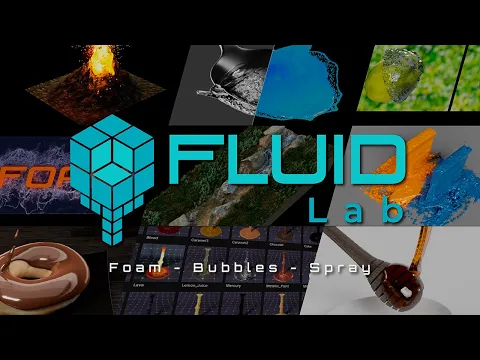
Reviewers describe it as a quick way to get good-looking liquids without heavy simulation setups, and some keep FLIP Fluids around for larger scenes. That makes FluidLab a handy companion rather than a replacement for a full solver.
Compatibility: Blender 4.1 to 5.1 per its Superhive page.
Who it is for: product shots, small splashes, and quick liquid effects where setup time matters.
5. Water VFX Master: Real-Time Water, No Baking
Water VFX Master takes a different path: real-time, procedural water systems that react instantly in the viewport instead of baked particle simulations.
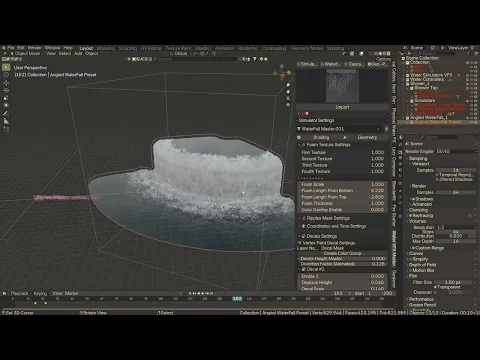
Key features
- Real-time water simulators: instant feedback, no bake
- Waterfall generator and Water Cascade simulator: from garden cascades to cliff-sized falls
- Presets and custom presets: build your own VFX presets and add them to your asset library
- Split Render: a feature aimed at making large projects easier to render
The trade-off is stated on its own product page: it is not designed for super-accurate fluid simulations in close-up shots. For a liquid filling a glass, use a true solver. For waterfalls and environment water on a deadline, this is a time saver. Dense effects can also take a while to render in Cycles.
Who it is for: background environments, architectural visualization, and fast-turnaround water VFX.
6. DeltaFlow: Flowmap Shaders for Animated Water
DeltaFlow is a shader tool, not a simulator. It uses flowmaps, textures that tell another texture which way to move, to animate water and other fluids with almost no geometry and no baking.

What is included
- Principled Water shader: controls for flow direction, speed, breakup, foam, and waves
- Emission Water shader: a flat, stylized look that is easy to recolor
- HeightmapToFlowmap node group: converts a height map into a downhill flowmap
- AutoFlow: a flowing water layer that runs down the sides of your objects
- Two premade flowmaps, including a radial vortex
Heads up: the product page lists compatibility only up to Blender 3.6. Test the demo scene in your Blender version before you buy.
Who it is for: rivers, lakes, whirlpools, and stylized water where look and performance matter more than strict physics.
7. Vortex: Fluid Enhancements for Swirling Motion
Vortex is listed on Superhive as “Vortex – Fluid Enhancements,” and it is aimed at giving you more expressive control over swirling, rotating fluid behavior than a standard force field setup.
Think whirlpools, drain vortices, stirred liquids, and swirling smoke. Because details change between versions, read the product page for current features and Blender support before buying.
Who it is for: artists chasing stylized or dramatic swirling motion.
8. Cell Fluids: Fast 2.5D Water for Rivers, Lakes, and Oceans
Cell Fluids by specoolar is a Geometry Nodes addon for interactive, lightweight fluid simulation. It is 2.5D: the simulation runs on a 2D grid mesh with displacement, driven by the scene’s height field. That makes it quick and light, and well suited to larger bodies of water.
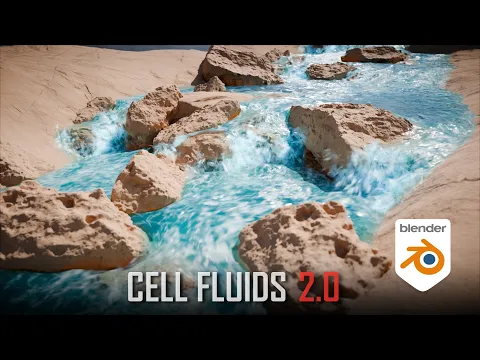
Key features
- Fast, interactive simulation that works in Eevee and Cycles
- Curve guides to steer fluid direction
- Bake any state to a static mesh with a flowmap
- Flowmap export to Unity and Unreal Engine
- Blending with a still ocean plane
Limits to know: it is not particle-based, cannot handle complex or multilayered fluids, and has no viscosity support. Version 2.0 requires Blender 4.1 or newer.
Who it is for: game environments, rivers, lakes, and any scene where interactive speed beats physical accuracy.
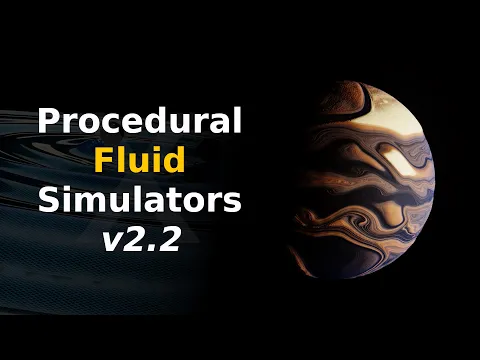
9. Procedural Fluid Simulators: Geometry Nodes Fluids on Any Surface
Procedural Fluid Simulators by 3D Singh VFX is a set of Geometry Nodes simulators that run fluids on grids, curve-grids, and any mesh surface (open or closed, triangles or quads). The workflow is field-based, so you steer the fluid with attributes and forces instead of a physics bake.
Key features
- Two solver types: Fast (real-time) and Exact (high accuracy)
- Advanced advection: Semi-Lagrangian, MacCormack, BFECC, and higher-order methods
- Forces and boundaries: buoyancy for smoke-like effects, plus open, wrap, and solid boundaries
- Collisions and dynamic externals: drive density, temperature, color, and velocity
- Advector nodes: Particle Advector, Curve Advector, and Curve Tracer for particles and curves that follow the flow
- Transformable domains: move the grid or mesh during the simulation and the fluid inherits the motion
- 24 project files included in the latest version
Good to know: it needs basic Geometry Nodes knowledge. Simulation Nodes can be baked from the Physics tab, and the page lists support for Blender 3.6 to 5.2 with free updates.
Who it is for: motion graphics and stylized VFX artists who want deep, art-directable control.
Gett Procedural Fluid Simulators
10. Curve Fluids: Real-Time Procedural Liquids from Curves
Curve Fluids by Blender Procedural is a Geometry Nodes addon that generates real-time procedural liquid animation. You work with curves, which makes it a fast way to lay out flowing, splashing liquid without a particle bake.
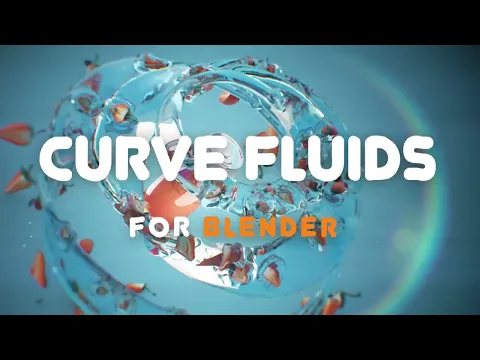
It is a strong fit for liquid animation where art direction beats physical accuracy: product shots, motion graphics, and quick splash looks. It is not a physics solver, so for close-up, physically correct liquid, FLIP Fluids is the better tool.
Compatibility: Blender 4.0 to 4.5 per its Superhive page, with Cycles and Eevee support. Check the product page for the full feature list.
Who it is for: artists who want quick, curve-driven liquid without a bake.
11. Fluid Kit: Procedural Water Generators and a 300-Asset Library
Fluid Kit by Casey_Sheep is two things in one: a set of Geometry Nodes water generators and a library of over 300 static water assets. Everything is procedural, so there are no physics bakes to wait on.

Key features
- Animated water generators: 4 animated and 2 static Geometry Nodes generators
- Painting feature: brush animated water exactly where you want it
- One-click import for presets and assets
- Four material presets, tuned for Cycles (Eevee works but may not look as good)
- Editable meshes: every asset can be modified to fit your scene
Heads up before you buy: the full package is about 4.26 GB, and some assets exceed 1 million polygons. A built-in safety warning shows the polygon count before import. The page lists Blender 3.4 to 5.2 support.
Who it is for: concept artists, product advertising renders, and anyone who needs good-looking water fast.
12. Fluid Painter: Paint Viscous Fluids onto Surfaces
Fluid Painter by Mk3dLab uses Geometry Nodes to let you draw a curve on a 3D surface and watch fluid appear along it, complete with drips at the end of each stroke.
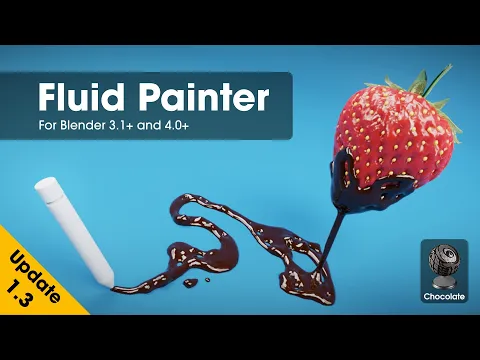
It shines with viscous fluids like honey, mud, wax, or caramel, and it can stick fluids onto animated objects. It is not suited to thin, splashing liquids such as water or wine, and it is not meant for complex fluid animation. The page lists Blender 3.1 to 5.2, but some users have reported a Blender 5.0 error when keeping fluid properties, so test your version.
Who it is for: food visuals, packaging renders, and surface effects like drips and leaks.
Blender’s Built-In Mantaflow: What You Get for Free
Before spending anything, know what Blender already includes. Mantaflow handles:
- Liquid simulation: splashes, pouring, containers
- Gas simulation: smoke, fire, explosions
- OpenVDB support: import and export volumetric data
- Adaptive domain: resizes to fit the fluid and save memory
- Guide objects: steer fluid along paths
- Particles: spray, foam, and bubble particles for liquids
- Mesh caches: export as Alembic or similar caches for rendering
For smoke, fire, and moderate liquid work, Mantaflow is often enough. Addons earn their keep when you need faster setup, larger liquid scenes, or effects the built-in solver does not produce.
Choosing the Right Tool for Your Project
| Project Type | Recommended Tool |
| Multiple fluid effects, fast setup | Let’s Flow |
| Large-scale realistic water or ocean | FLIP Fluids |
| Quick, preset-driven small-scale liquid | FluidLab |
| Cleaner Mantaflow workflow | MantaPro |
| Real-time waterfalls and environment water | Water VFX Master |
| Flowing river or lake materials | DeltaFlow |
| Interactive 2.5D rivers, lakes, oceans | Cell Fluids |
| Deep procedural control on any mesh | Procedural Fluid Simulators |
| Curve-driven real-time liquid | Curve Fluids |
| Instant water generators and static water assets | Fluid Kit |
| Viscous drips and leaks on surfaces | Fluid Painter |
| Swirling, vortex-style motion | Vortex |
Getting the Most Out of Your Fluid Simulations
Match your scale to the real world. Fluid physics uses real-world dimensions. A coffee cup that is 5 metres wide will behave strangely. Check Scene Properties > Units first.
Bake to disk before rendering. For Mantaflow-based simulations, bake to disk before you render. Rendering unbaked simulations is inconsistent for animation. Need to convert a sim to keyframes? See how to bake animations and simulations to keyframes.
Use OpenVDB for smoke and fire. Cache as OpenVDB under Physics Properties > Fluid > Cache for better quality at render time.
Layer your renders. Render fluid and solid objects on separate passes and composite. You can then adjust the fluid look without re-rendering the whole scene.
Tame the noise. Glossy, refractive liquids are firefly magnets. Here is how to eliminate noise, grain, and fireflies, and how to speed up Cycles renders.
Frequently Asked Questions
Do I need an addon to simulate fluids in Blender? No. Blender’s built-in Mantaflow solver handles liquid, smoke, and fire for free. Addons add speed, a better interface, or different simulation methods.
What is the best addon for realistic water? FLIP Fluids is the usual pick for large-scale, detailed liquid. For quick, bake-free water, tools like Let’s Flow, Curve Fluids, and Fluid Kit are faster.
Which addons avoid baking? Let’s Flow, Water VFX Master, Curve Fluids, and Fluid Kit are built around real-time or procedural water. Procedural Fluid Simulators and Cell Fluids also run interactively, though Simulation Nodes can be baked when you need a cache.
Will these addons work in Blender 5.x? It varies. FLIP Fluids 1.8.8 supports Blender 4.5 to 5.2, and MantaPro, Fluid Kit, and Procedural Fluid Simulators list support up to 5.2. DeltaFlow’s page only lists up to 3.6, so test before buying.
Related Reading
- Blender Physics Addons
- How to Simulate Rain in Blender
- How to Create Realistic Water Ripples in Blender
- Blender Glare Node for Cycles: Glow and Bloom
- Best Blender Addons for Animation
- Addons for Lighting in Blender
- How to Create Realistic Glass Material in Blender Eevee
- How to Render an Animation as Video in Blender
Make Your Next Scene Splash Harder
Every tool here solves a real problem. The hard part is matching the tool to the shot. Start with the comparison table, pick the one that fits your deadline and your hardware, and run its demo or a test scene before committing.
Which fluid addon are you using, or planning to try? Drop it in the comments. Real production feedback helps every Blender artist reading this. If this guide saved you time, share it with a fellow artist who is still fighting Mantaflow settings, and keep an eye on the blog, because this page is updated as these addons evolve.

What do you think?
Join the Conversation