How to Create Realistic Water Ripples in Blender

Water feels alive when it moves. A still surface looks flat, but a few ripples can change everything.
If you’ve ever tried to create water in Blender and felt something was missing, this guide will help you fix that. You’ll learn how to create realistic water ripples step by step and understand why each step matters.
Open Blender and follow along as you read.
What You’ll Be Creating
By the end, you’ll have:
- A water surface with natural ripple motion
- Controlled wave patterns
- A setup you can reuse in other scenes
This works great for lakes, puddles, oceans, or even small product scenes.
Video Tutorial
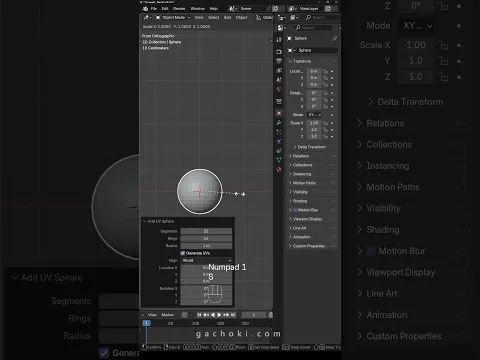
If you prefer to follow along visually, this video walkthrough demonstrates the complete Dynamic Paint water ripple setup in real time. The video covers canvas configuration, brush animation, wave settings, and viewport validation.
Step 1: Add a Plane
Start simple.
- Press Shift + A → Mesh → Plane
- Scale it up to create your water surface
This plane will act as your base.
Step 2: Subdivide for More Detail
Ripples need geometry to form properly.
- Go into Edit Mode
- Right-click → Subdivide
- Increase the number of cuts
More subdivisions give you smoother and more detailed ripples.
If your mesh feels heavy later, you can optimize it using this guide How to Bake Animations and Simulations to Keyframes in Blender.
Step 3: Add a Displace Modifier
Now you’ll create the ripple effect.
- Go to the Modifiers panel
- Add a Displace Modifier
- Click New to create a texture
This modifier will push and pull your mesh to form waves.
Step 4: Choose a Texture for Ripples
Switch to the texture settings.
- Change the texture type to Clouds or Musgrave
These textures generate natural patterns that work well for water.
Play around with:
- Size
- Detail
- Contrast
Watch how the surface changes as you tweak values.
Step 5: Control the Strength
Go back to the Displace Modifier.
- Adjust the Strength value
Keep it subtle. Real water rarely has extreme spikes unless you’re simulating rough conditions.
Step 6: Animate the Ripples
This is where things come alive.
- In the texture settings, find the Offset values
- Insert a keyframe on frame 1
- Move to another frame and change the offset
- Insert another keyframe
Press play. You should now see moving ripples.
Step 7: Smooth the Surface
Add a Subdivision Surface Modifier on top of the Displace modifier.
This smooths out the mesh and gives the ripples a natural look.
If you want cleaner shading, this may also help, why some faces appear dark on a mesh in Blender and how to fix it.
Step 8: Create a Water Material
Now make it look like water.
- Add a new material
- Use a Principled BSDF shader
- Lower Roughness
- Increase Transmission
You can also explore how to create realistic glass material in Blender Eevee for a more refined setup.
Water and glass share similar properties, so this helps you get closer to realism.
Step 9: Add Lighting and Environment
Water reacts to light.
- Add an HDRI or light source
- Adjust reflections
Good lighting makes ripples stand out.
To enhance your final look, you can also try adding a glow/bloom effect.
Quick Check Before You Render
Ask yourself:
- Do the ripples feel natural?
- Is the movement too fast or too slow?
- Does the lighting support the water surface?
Small adjustments here can improve your final result.
Keep Experimenting with This Setup
Once you understand this method, you can:
- Create rain effects on water surfaces
- Combine ripples with fluid simulations
- Add objects interacting with the surface
You can make your scene more interesting by simulating rain interacting with water.
Share What You Create
Try this technique in your own scene.
Did you create calm water or something more dramatic?
Leave a comment and share what you made. If you get stuck, ask your question. I’ll help you figure it out.
Don’t Miss the Next Blender Trick
If you want more tutorials like this:
- Explore more guides on the blog
- Share this post with someone learning Blender
- Check back for new tutorials and updates
There’s always a faster or better way to do things in Blender. Keep learning and keep building.
Download the Project File

What do you think?
Join the Conversation