Speed Up UV Unwrapping in Blender

UV unwrapping can slow you down fast. You mark seams, unwrap, check the result, then repeat the same steps again and again.
There’s a better way.
This guide shows you how to unwrap in real time while you work, cut down repetitive steps, and finish UVs much faster without losing control. Try each step as you read. You’ll feel the difference right away.
Video Tutorial
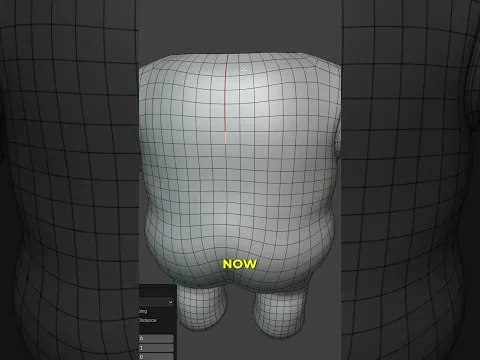
Step 1. Start With the Right Setup
Let’s set up your workspace so Blender updates the UVs as you go.
- Select your object
- Press Tab to enter Edit Mode
- Switch to Edge Select Mode
Now enable the key feature:
- In the 3D Viewport, open the Options dropdown
- Turn on Live Unwrap
Next:
- Open the UV Editor
- Enable Sync Selection
Why this matters:
You will now see your UVs update instantly as you mark seams. No need to unwrap manually each time.
Step 2. Mark Seams and Watch It Update Instantly
Now start working on your seams.
- Select any edge
- Right-click
- Choose Mark Seam or Clear Seam
With Live Unwrap active, Blender will automatically update the UV layout every time you make a change.
This removes the need to press “U → Unwrap” repeatedly.
Step 3. Select Edge Loops Faster with Shortest Path
Manually selecting edges slows everything down. Use this trick instead.
- Select one edge
- Hold Ctrl and click another edge
Blender selects all edges in between using the shortest path.
When the menu appears:
- Set Edge Tag to Mark Seam
Now every time you Ctrl-click between two edges:
- Blender selects the path
- Marks it as a seam
- Updates the UV instantly
You just turned a multi-step process into a single action.
Step 4. Mirror Seams for Symmetrical Models
Working on symmetrical objects? Don’t do double work.
- Mark seams on one side only
- Select one seam
- Press Shift + G → Seam to select all seams
- Press Ctrl + Shift + M to mirror the selection
- Right-click and choose Mark Seam
This duplicates your seam setup perfectly across the model.
Speed Boost Tips (Updated for New Blender Versions)
Blender keeps improving UV tools. Use these to stay efficient:
Use UV Pack and Average Island Scale
After unwrapping:
- Press A in the UV Editor
- Use Average Island Scale
- Then Pack Islands
This keeps texture density consistent and saves cleanup time.
Pin Important Areas
- Select UV vertices
- Press P to pin them
Pinned areas stay in place while the rest unwraps.
Great for faces, logos, or key details.
Use Angle-Based Unwrap for Organic Shapes
- Press U → Unwrap
- Choose Angle Based
Works better for curved surfaces like characters or cloth.
Check Stretching in Real Time
- In the UV Editor, enable UV Stretch Display
This helps you fix distortion early instead of after texturing.
Common Mistakes That Slow You Down
- Forgetting to enable Live Unwrap
- Not using shortest path selection
- Marking too many seams unnecessarily
- Ignoring symmetry and duplicating work
- Skipping UV packing and scaling
Fix these and your workflow becomes much faster.
Learn More and Improve Your Workflow
Keep building your Blender skills with these related guides:
- How to speed up cycles render in Blender
- How to assign more than one material to a mesh in Blender
- How to setup a video or image sequence texture in Blender
- How to remove double or overlapping vertices in Blender
- How to clean up text topology in Blender
These will help you move from unwrapping to clean, production-ready results.
Got Questions or Want to Share Your Workflow?
If something feels confusing or not working right, leave a comment and explain what’s happening.
You can also share your UV layout or model for feedback.
What’s your biggest challenge with UV unwrapping right now?
Turn This Into Your New Default Workflow
You now have a faster way to unwrap:
- Real-time feedback
- Faster seam selection
- Less repetition
- Cleaner UVs
Save this guide, test it on your next model, and see how much time you save.
If this helped you, share it with another Blender user or explore more tutorials on the site. New updates and techniques get added regularly.

What do you think?
Join the Conversation