Turn Yourself Into Any Creature With One Camera and Free AI
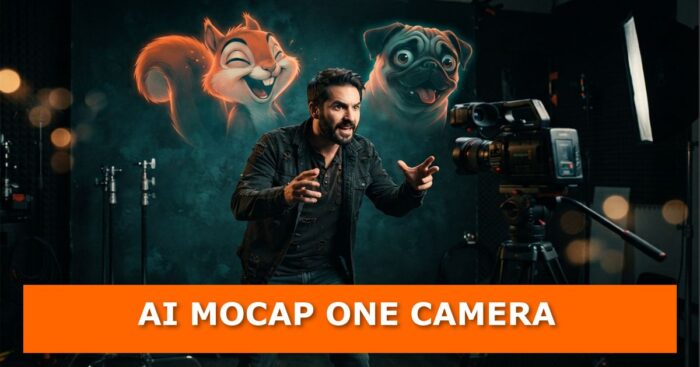
You can now turn yourself into a creature, or even another person, using free AI tools that run on your own computer. A ComfyUI workflow built around the MiniMax H3 video model takes a single clip of your performance, a text prompt and a character sheet, then recreates your acting as a new character. What once needed a mocap stage, a marker suit and a VFX team now needs one camera and a decent prompt.
Creator Mickmumpitz built the workflow and put it through a gauntlet of tests, from a simple head swap to a full-body pig, multiple characters and one deeply cursed worm. Here is what he found, how the setup works, and where it breaks.
How the Workflow Works
The workflow runs inside ComfyUI and uses MiniMax H3’s reference version. H3 comes in two flavors: one driven by start and end frames, and one driven by references. The reference version is the one used here, and it accepts images, video and even audio.
You feed it your original performance video, a detailed prompt, and lock the audio to the original clip. The model then reproduces your timing, eye movement and emotion in the new character.
The clever part is inpainting. The AI generates a mask (or you draw one), and the model can only change pixels inside that mask. That keeps the camera movement locked, gives you full control over the final video, and lets you composite the generated result on top of the original footage.
Set It Up and Run Your First Test
- Install the workflow.
- Drag and drop it into the ComfyUI interface.
- Install the missing custom nodes when prompted.
- Download the models.
- The download links and folder locations are listed in a node at the left of the workflow.
- If setup feels fiddly, you can ask ChatGPT or Claude Code to walk you through it. Our own write-up on Claude running a full Blender and ComfyUI pipeline solo shows how far that idea can go.
- Load your video.
- Work mostly in the green group of nodes.
- Lower the frame load cap for quick demo runs.
- Name what to replace.
- Type everything that should change: your head, a helmet, a dangling phone, even a cable rig.
- Check the result in the regenerated area group by hitting play on the preview node.
- Fix stray bits of the mask.
- Adding the problem object to the prompt is the easiest fix.
- A quick manual mask in DaVinci Resolve or After Effects also works. Switch on the manual mask toggle and drop the file in.
- Describe the character and run.
- Plain natural language is enough. The test prompt asked for a pug.
- The workflow also builds a comparison video so you can check input against output.
The pug test captured the performance well: left and right glances, an open mouth, happy and sad expressions all carried over. One flaw showed up. The head came out larger than intended, partly because the mask had to be big to cover the headgear. Adding “small head” to the prompt is the suggested fix.
Lock the Look With a Character Sheet
Run the workflow on different scenes and the creature would look different every time. A character sheet fixes that.
- Generate the sheet with a current image model such as Nano Banana, Qwen Image Edit or the standard Krea 2 workflow in ComfyUI.
- Have a large language model write a detailed prompt for it.
- Push the emotions hard. In a side-by-side test, the neutral sheet gave flat expressions while the exaggerated one looked far better.
- Activate the sheet in the workflow and tell the model to keep the character’s identity, look and art style from picture number one.
With a squirrel sheet loaded, the eye tracking, open mouth and mood changes all carried through. The prompt templates are promised free on the creator’s Patreon.
Beyond the Head: Full Bodies and Whole Scenes
Because masking is precise, you can swap far more than a face.
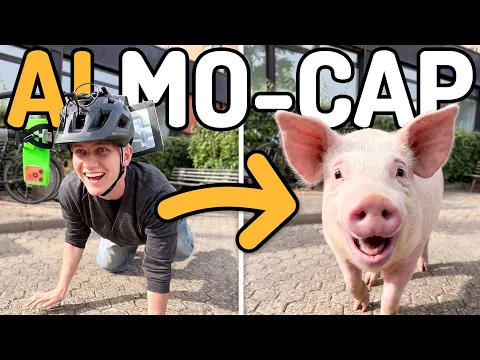
- Full body: For a shot of crawling on the ground, the prompt targeted “person” instead of “head”, which generated an automatic body mask. It tracked a few wrong objects, so a hand-drawn black-and-white mask can be cleaner. The pig result nailed the timing and the vibe of the scene, down to the little ears.
- Face only: A separate test swapped just the face and worked very well.
- Interactions: Including part of the hand in the mask gave the model freedom to adjust it so the interaction looked better.
- Multiple characters: Mask each person correctly and the model handles several characters, including a three-character scene generated in one go.
- Timecodes: Putting timecodes in the H3 prompt lets you direct expressions moment by moment.
Do Two Cameras Beat One?
The creator built a janky helmet rig to add a close-up face camera next to the wide shot, then explained in the prompt how to use both. The verdict: not much visible difference, and the helmet complicated things. With one camera, eyes followed well, though head direction drifted at times.
A lightweight rig, perhaps with a GoPro, could still earn its keep in a real production when an actor is blocked by something or turns away. For quick shots, it is not worth the hassle.
Where It Falls Apart
- Audio can fool the model. Footstep sounds were mistaken for mouth movements, so a pig face opened at the start of one clip. Cleaning up the audio pays off.
- Large masks cause oversized features. The bigger the allowed area, the bigger the generated head tends to be.
- Automatic masks slip. Expect to paint manual masks for tricky shots.
- Extreme transformations get cursed. Turning the head and lower body into a worm produced a nightmare. Using a full-body mask instead gave a much better, though still cursed, worm.
The Advanced Version
Patreon supporters get an advanced workflow with an H3 upscaler that lifts generated video to roughly 2K resolution with finer detail. It also saves the masks needed to composite the final shot in After Effects or Nuke, plus example files.
Why This Matters for 3D and Animation Artists
AI is quietly rewriting the performance capture pipeline. If you already animate in Blender, pair this with our look at AI-powered motion capture, browse the AI addons for Blender, or try rendering Blender animations with AI for free. Hardware-limited? See how a 6GB VRAM setup builds game-ready characters and how real-time AI animation now runs on a 6GB card.
FAQ
Do I need a second camera for AI performance capture? No. Tests showed little visible gain from a helmet camera, though a light rig can help when the actor is obstructed or turns their head.
Can it change my whole body, not just my face? Yes. Mask the full person instead of the head, and the model can transform the entire body, as in the crawling pig shot.
How do I keep a creature looking the same across shots? Generate an expressive character sheet and tell the model to keep the identity and style from that reference image.
Does it work with more than one character? Yes, as long as each character is masked correctly. A three-character scene worked in a single generation.
Watch the Full Test
Cast Yourself as the Creature
Grab a camera, sketch a character sheet and push those emotions further than feels comfortable. The best part of this workflow is how fast you can iterate: one clip, a new prompt, a new creature.
Have you tried turning yourself into something strange with AI? Drop your results, questions and worst worm attempts in the comments, and tell us which of our Blender and AI guides you want next.

What do you think?
Join the Conversation