How to Create Dynamic Cables in Blender

Want cables in your scene that actually move like real wires instead of looking stiff and fake? This guide shows you a simple setup that gives you natural, dynamic cable motion using Blender’s physics system.
You won’t need complex rigs or add-ons. Just a few smart steps, and your cables will react to movement in real time. Follow along and try it yourself as you read.
Video Tutorial
Step 1. Start With a Simple Mesh
Begin with a clean base.
- Add a Plane
- Enter Edit Mode
- Add a loop cut through the centre
- Add a few more cuts along the length
Now strip it down:
- Select the outer vertices
- Delete them
You should now have a single subdivided line of vertices. This acts as the backbone of your cable.
Tip: Keep your topology evenly spaced. It helps the simulation behave better.
Step 2. Create a Pin Group for Control
You need fixed points to anchor the cable.
- Select both end vertices
- Create a Vertex Group
- Name it “pin”
- Assign the selected vertices to this group
This step controls where the cable stays attached.
Important: Without this, the cable will fall freely with no control.
Step 3. Add Cloth Physics
Now bring the cable to life.
- Add a Cloth Modifier
- Go to the Shape section
- Set the Pin Group to your “pin” vertex group
This tells Blender which parts stay fixed and which parts move.
Quick check: Play the timeline. You should already see basic motion.
Step 4. Give the Cable Thickness
Right now, it’s just a line. Let’s turn it into a cable.
- Add a Skin Modifier
- Go into Edit Mode
- Select all vertices
- Press Ctrl + A and scale to adjust thickness
Then smooth it out:
- Add a Subdivision Surface Modifier
- Enable Smooth Shading in the Skin modifier
You now have a clean, rounded cable.
Step 5. Attach the Cable to Objects
Let’s make the cable connect to objects in your scene.
- In Edit Mode, select one end vertex
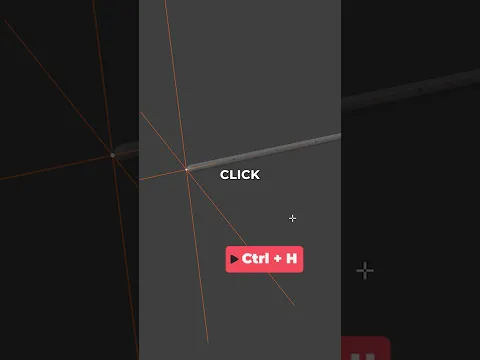
- Press Ctrl + H
- Choose Hook to New Object
Repeat for the other end.
Blender creates empty objects that control each end of the cable.
You can now move or animate these empties to drive the cable motion.
Step 6. Fix the Modifier Stack (Very Important)
Modifier order affects everything.
Set your stack like this:
- Subdivision Surface (for smoother bending)
- Hooks
- Cloth Modifier
- Final Subdivision Surface (for visual smoothness)
Key rule: Place the Cloth modifier below the Hooks so the simulation works correctly.
Step 7. Improve Cable Bending
To get smoother deformation:
- Add another Subdivision Surface Modifier
- Place it before the Cloth modifier
This helps the cable bend naturally instead of forming sharp angles.
Step 8. Animate and Test the Cable
Now the fun part.
- Play the animation
- Move or keyframe the empty objects
You’ll see the cable react in real time.
Try this:
- Move one end quickly
- Add slight rotation
- Create a swinging motion
Watch how the cable follows with realistic lag and movement.
Step 9. Make It Even Better (Updated Tips)
Blender has improved physics over time, so here are a few upgrades you should use:
Adjust Cloth Settings
- Increase Quality Steps for smoother simulation
- Lower Mass for lighter cables
- Add slight Damping to reduce jitter
Enable Collision (Optional)
If your cable interacts with objects:
- Enable Collision on nearby meshes
- Enable collision in the Cloth settings
Use Shade Auto Smooth
- Right-click the cable
- Enable Auto Smooth for cleaner shading
Common Mistakes to Avoid
- Wrong modifier order breaks the simulation
- Too few subdivisions cause stiff movement
- No pin group makes the cable uncontrollable
- Over-scaling in Object Mode can distort physics
Keep your setup clean and consistent.
Keep Learning with These Blender Guides
If you want to push your scenes further, explore these related tutorials:
- Create realistic water ripples in Blender
- Simulate rain in Blender
- Create dynamic fur in Blender
- How to use motion blur in Blender
- How to animate a car in Blender
These pair well with cable simulations when building full scenes.
Got Questions or Stuck?
If something doesn’t behave as expected, drop a comment and describe what’s happening.
You can also share your render or setup. That makes it easier to help you fix issues fast.
Build Better Scenes Starting Today
Now you’ve got a system you can reuse in any project.
- Add cables to environments
- Animate hanging wires
- Create interactive props
If you found this useful, share it with someone learning Blender or save it for later.
Check back for updates as Blender continues to improve its physics tools.

What do you think?
Join the Conversation