Add a Transparent PNG Texture Over a Blender Material — Quick Guide

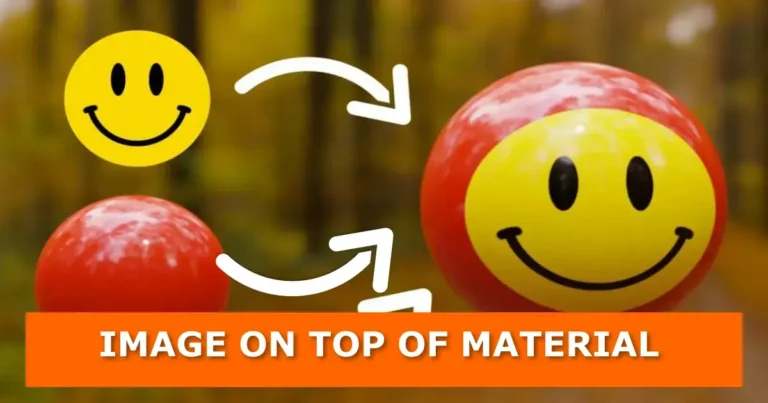
In this blog post, you will learn how to overlay a transparent PNG texture on a material in Blender. It is a suitable technique used to place stickers on product packaging.

Below is the node setup you use to place a transparent image on top of a material

1: To control the color of the shader on the mesh

If you wish to utilize the image’s color information over the color of a particular shader in such a manner that all other characteristics of the shader are uniform, use a color mix node and make the mask the factor for the shader’s color. Connect Alpha to the Fac of the mix RGB and the resulting mix to the color input of the shader.

Node setup for transparent texture on top of a material in blender
Node setup for transparent texture on top of material in blender

2. Keep a close eye on the order in which the sockets are linked

The color chosen in the RGB mix node will be utilized in the mask’s black areas (or “alpha” channel), while the color of the picture used as the texture will be used in the white areas. If you’re using more than one texture, mix them using both inputs of the color mix node.

You may also like

Share this Post

Facebook
x
LinkedIn
Reddit

About the author

E. Gachoki

Gachoki is a professional animator, VFX artist, and Blender developer with over 10 years of experience in creative production and technical development. Founder and lead creative director at Gachoki Studios (established 2015), Gachoki specializes in animation, visual effects, Blender addon development, web design, and AI-driven creative workflows. His work has been featured in commercial animation projects and educational content Worldwide. Gachoki holds certifications in 3D animation and digital marketing, and regularly publishes technical tutorials on animation software optimization.

Ask a Question

Subscribe
Notify of
guest

0 Comments
Oldest
Newest Most Voted
Inline Feedbacks
View all comments

Related Posts