
How to Import Images as Planes in Blender
This guide shows how to bring an image into your scene as a plane. Recent Blender releases include this functionality directly in the Add menu so you won’t need to enable any add-ons first.
If you plan to use image planes for animatics, storyboards, or motion scenes, explore additional Animation resources here.
Why This Method Works
Newer versions of Blender include the ability to add images as planes directly through the Add menu rather than relying on an add-on. This lets you insert an image with appropriate material and texture immediately from the 3D Viewport.
Step 1: Adding the Image
In Object Mode, follow these simple steps:

- Press Shift + A to open the “Add” menu. Alternatively, you can click the Add button in the top menu.
- Open the Add menu (Shift+A), then go to Image and choose Mesh Plane. A file browser will appear so you can pick your image.
- Browse to your desired image file.
Step 2: Adjusting Material Settings
Before importing your image, you’ll see several material setup options. Let’s break them down:
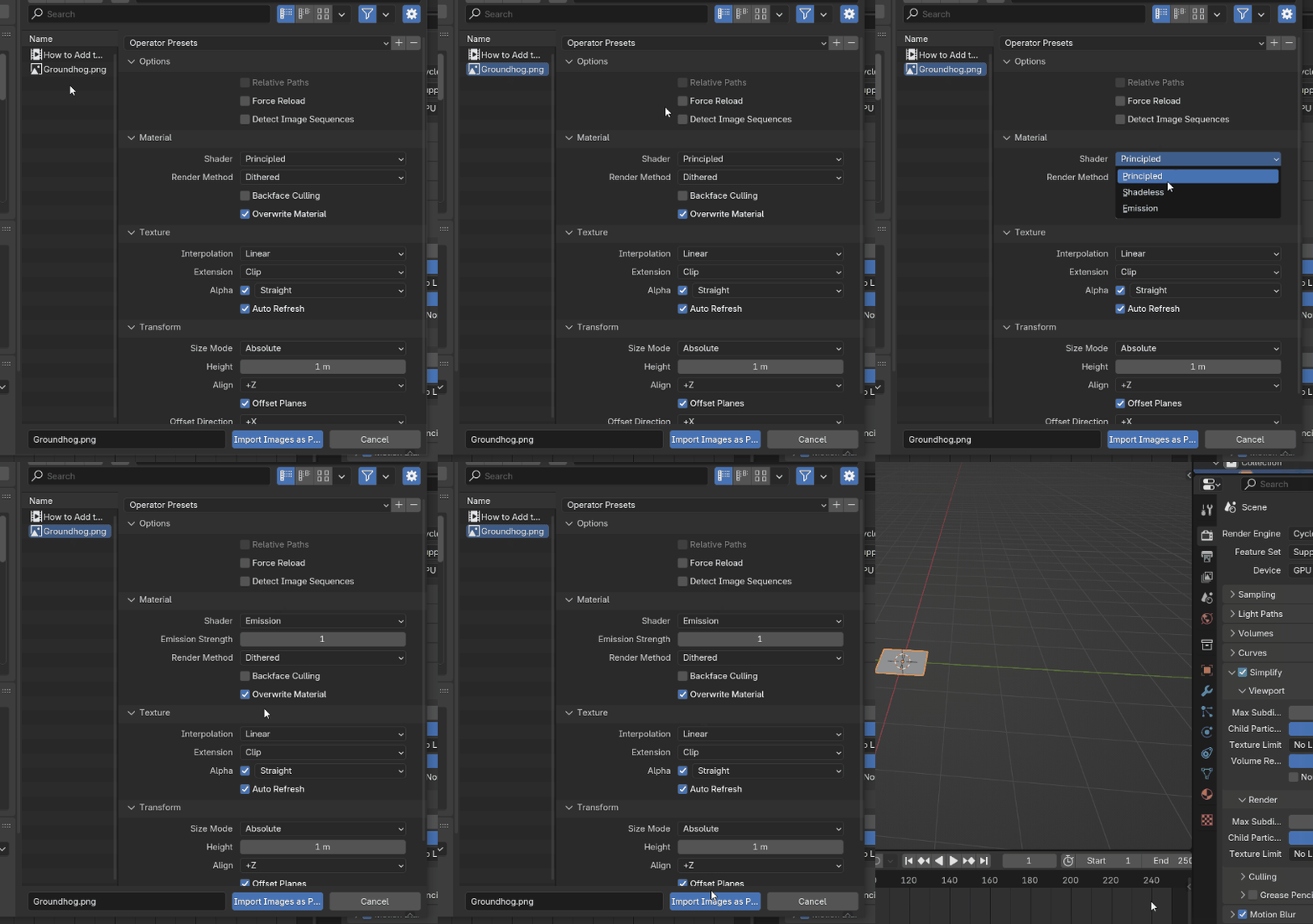
- Principled: Creates a basic Principled Shader setup. This is great for general-purpose workflows.
- Shadeless: Removes most shading effects, giving your plane a flat, unlit appearance.
- Emission: Routes the image through the emission node of the Principled Shader, making it slightly emissive. This setup is perfect for projects that require brighter, glowing visuals, though it might not always look realistic.
My Recommendation: The Emission setting is a favorite for its ability to make images pop in your scene.
Step 3: Importing the Image
Once you’ve selected your material settings:
- Click Import Images as Planes.
- Your image will appear in your scene as a single plane. You can now manipulate it like any other object in Blender—scale it, rotate it, or move it around.
Ready to Try It?
That’s all there is to it! Adding images as planes in Blender is straightforward once you know where the option lives in the menus. Give it a try and adjust material settings to fit your scene.
Join the Conversation
Did this guide help you? Have questions or tips to share? Leave a comment below—I’d love to hear from you! You can also explore related content on our blog for more Blender tutorials.
Stay Connected
If you found this post helpful, don’t forget to:
- Share this guide with your fellow Blender enthusiasts.
- Subscribe to our blog for the latest updates.
- Bookmark this page for quick reference.
If you’re working with reference setups, you may also want to check how to set a background image in Blender for modeling reference, which is another way to bring images into Blender for accuracy.
For workflows that involve multiple textures, you might also like how to add more than one material to a mesh in Blender, which complements imported images.
If you’re dealing with layered textures, you may also enjoy how to add a transparent PNG texture image on top of material in Blender, which works well with image planes.
For video-based textures, you might also check how to set up a video or image sequence texture in Blender, which expands on the same principle.
For related workflows, see Blender shadow catcher to integrate image planes seamlessly into composited scenes.
Stay creative and happy Blending!

What do you think?
Join the Conversation