
Best UV Mapping Addons for Blender
Here is an honest truth that every Blender artist eventually faces: you can model a great object, set up perfect lighting, choose a beautiful material — and then the texture looks completely wrong because the UVs are a mess. Stretched, overlapping, misaligned. UV mapping is one of those steps that can silently ruin an otherwise great render.
The good news is that you do not have to wrestle with Blender’s default UV tools alone. There are some excellent addons — both free and paid — that make the whole process faster, more accurate, and far less frustrating. In this guide, we are covering the best UV mapping addons for Blender 4.2 and above, what each one does, and who it is best suited for.
Quick Comparison: Which Addon Does What
Not sure which addon you need? This table gives you a quick overview before you dive into the full descriptions below.
| Addon | Primary Use | Cost | Best For |
| UVPackmaster 4 | UV island packing | Paid | Complex models, game assets, production pipelines |
| Zen UV | Full UV workflow suite | Paid | Artists who want one addon for everything |
| Texel Density Checker | Texture resolution consistency | Paid | Game artists, multi-object scenes |
| UV Squares | Flatten UVs into a grid | Paid | Architecture, hard surface, planar surfaces |
| RizomUV Bridge | Connect Blender to RizomUV | Paid | Artists using RizomUV for advanced unwrapping |
| Symmetrize UV Util | Mirror UV islands | Paid | Characters and symmetrical models |
| UV Flow | Align UVs to edge loops | Paid | Organic models, characters, creatures |
| Mallet: UV Aligner | Precise UV alignment | Paid | Hard surface cleanup, alignment after unwrapping |
| Quick UV Checkers | Toggle checker texture | Free | Visualising stretch and distortion during unwrap |
| AutoUV | Automated batch unwrapping | Free | Background objects, fast-turnaround projects |
| Curve to Mesh Pro | Uniform UVs for curves | Paid | Pipes, cables, ropes, tubular geometry |
| Transfer Images | Copy images between UV maps | Free | Multi-UV-map assets, lightmap workflows |
| UV Maps+ | Manage multiple UV map slots | Free | Complex assets with many UV channels |
What You Should Know Before Installing UV Addons in Blender 4.2
If you upgraded to Blender 4.2 or later, you may have noticed something different. Blender replaced its old Add-ons panel with the new Extensions platform. This affects how you install and manage addons. Many tools that were previously bundled inside Blender now need to be installed separately through Edit → Preferences → Extensions.
For third-party paid addons downloaded as ZIP files, the process is similar: go to Edit → Preferences → Extensions, click the dropdown arrow in the top right, select Install from Disk, and point it to your ZIP file.
Also worth knowing: Blender has been improving its built-in UV tools consistently across versions 4.2, 4.3, 4.4, and 4.5. The native unwrapping options now include Angle Based Flattening (ABF), Least Squares Conformal Mapping (LSCM), and SLIM (Scalable Locally Injective Mapping), which minimises distortion for both areas and angles. Blender 4.5 further improved UV mapping to reduce texture stretching, making the baseline tools stronger than ever before. That said, the addons below still offer capabilities that go well beyond what Blender can do natively.
For a step-by-step guide on installing addons, see our post on how to install add-ons in Blender.
1. UVPackmaster
Best for: Anyone who needs fast, high-quality UV packing — especially on complex models
UVPackmaster is the most capable UV packing addon available for Blender, and it has been updated to version 4 with a completely reworked architecture. If you have been using UVPackmaster 3, the developers offer an upgrade path at a discounted price — check the FAQ on their website for details.

What makes UVPackmaster stand out is its engine. It uses both your CPU and GPU simultaneously to pack UV islands, which means packing even very complex UV maps with thousands of islands takes seconds instead of minutes. It supports CUDA and Vulkan APIs for GPU acceleration, making it compatible with a wide range of hardware setups.
Beyond raw speed, UVPackmaster gives you precise control over how packing works. You can lock specific islands in place, define groups that pack independently with their own texel density, set exact pixel margins between islands, and even write custom packing logic using embedded Python scripting.
Recent additions in the latest releases include:
- GPU-accelerated packing on Mac using the Vulkan API
- The ability to automatically set texel density before packing
- Improved packing density for UV maps with a huge number of small islands
- Full support for Blender 4.2 through 4.5 and Blender 5.0
If you are working on game assets, architectural visualisation, or any project where tight, accurate UV packing matters, UVPackmaster is the addon to have.
2. Zen UV
Best for: Artists who want a complete, all-in-one UV workflow inside Blender
Zen UV is the closest thing to a full UV suite available as a Blender addon. Rather than solving one specific problem, it covers the entire UV mapping process from initial unwrapping through to packing and texel density checking.
Zen UV 5.0 introduced the Touch Tool, a flexible transformation tool that lets you move, scale, and rotate UV islands directly in the UV Editor with fast, intuitive controls. It also added Auto Unwrap — a bridge to the Ministry of Flat Auto Unwrap application — and Zen Sync, which switches UV Sync Selection while keeping your selection consistent between modes. Zen UV 5.0 is fully compatible with Blender 4.4 and above.
Other features that make Zen UV worth using include built-in checker maps for spotting distortion in real time, texel density tools to keep resolution consistent across multiple objects, and an interface that is genuinely designed to speed up the workflow rather than just expose technical settings.
Key features:
- Touch Tool for fast, intuitive UV island transformations
- Auto Unwrap with external application integration
- Zen Sync for consistent selection across modes
- Checker maps and texel density tools
- Compatible with Blender 4.2 and above
3. Texel Density Checker
Best for: Game artists and anyone working in a pipeline where consistent texture resolution matters
If you have ever had a model where one part of the surface looks crisp and another looks blurry at the same render distance, uneven texel density is likely the cause. Texel density is the relationship between texture resolution and the surface area it covers, and keeping it consistent across an entire model — or across multiple models in a scene — is something Blender does not handle automatically.

Texel Density Checker solves this directly. It calculates the texel density of selected faces or objects, lets you set a target density, and then rescales UV islands to match. It also provides a visual overlay using vertex colours so you can immediately see which parts of a model have higher or lower density than your target.
This is an essential tool for game asset pipelines and any workflow where texture quality needs to be uniform and predictable.
4. UV Squares
Best for: Architecture, hard surface models, and any flat or planar surfaces
UV Squares is a focused addon that does one thing very well: it takes selected UV faces and arranges them into a uniform grid. This is exactly what you need when you are working on a surface like a wall, floor, brick pattern, or any geometry where you want the texture to sit flat and even without distortion.

Without UV Squares, straightening these kinds of UVs by hand is a tedious manual process. With it, you select the faces, run the operator, and the UVs snap into a clean grid. It saves a noticeable amount of time on architectural and hard surface projects.
5. RizomUV Bridge
Best for: Artists who want access to RizomUV’s advanced tools without leaving Blender’s pipeline
RizomUV is a standalone UV mapping application with some of the most powerful unwrapping and packing tools in the industry. The RizomUV Bridge addon connects it directly to Blender — you export your model from Blender, work on the UVs inside RizomUV, and then bring the finished UV layout back into Blender with minimal friction.

If you are already a RizomUV user, this bridge essentially removes the workflow barrier between the two applications. For artists who deal with complex, high-poly models where getting clean, well-packed UVs is genuinely difficult, the combination of Blender plus RizomUV is a very capable setup.
Note that this addon requires a separate RizomUV license to function.
6. Symmetrize UV Util
Best for: Characters and any symmetrical model
Symmetrizing UVs on a character or any other symmetrical model is one of those tasks that sounds simple but can get fiddly. Symmetrize UV Util handles it cleanly by letting you mirror UV islands across the axis of your choice, ensuring that both sides of a symmetrical model share the same UV space and texture layout.

This is particularly valuable when you are texturing characters, since it means you only need to paint one side of the face or body and the other side reflects it automatically. It saves time and eliminates the inconsistencies that come from trying to manually match UV islands on both sides.
7. UV Flow
Best for: Organic models where texture direction matters
UV Flow focuses on something specific that most other UV addons do not address directly: making the UV islands align with the natural flow of the model’s surface. On a character’s arm, a creature’s body, or any organic shape, you want the texture to follow the contours rather than cutting across them at awkward angles. UV Flow uses edge loops to guide island alignment, giving you a much cleaner and more natural result on organic geometry.

The addon has been in beta for some time, so check the product page for the current compatibility status with your version of Blender before purchasing.
8. Mallet: UV Aligner
Best for: Precise alignment adjustments after unwrapping
After you have unwrapped and packed your UVs, there are often small alignment issues — islands that are slightly off-centre, edges that do not line up perfectly, or groups of islands that need to be aligned relative to each other. Mallet: UV Aligner gives you precise alignment controls with Top, Bottom, Left, Right, and Centre options that work similarly to alignment tools in design software.

For hard surface models especially, this kind of precise alignment tool saves a lot of manual nudging and makes the final UV layout much cleaner.
9. Quick UV Checkers
Best for: Quickly visualising texture distribution during the unwrapping process
Quick UV Checkers is a free addon that adds a fast toggle for a checker texture on your model. You activate it during the unwrapping process to immediately see how the texture is being distributed — where it is stretching, where it is too dense, and where the seams are landing.

The ability to quickly switch the checker on and off, and to adjust its scale, is something you will use constantly while working on UVs. It is the kind of small tool that is easy to overlook but becomes a regular part of the workflow once you start using it.
10. AutoUV
Best for: Quick unwrapping across multiple objects or in fast-turnaround situations
AutoUV is a free addon that automates the UV unwrapping process. It is built for speed — when you need to unwrap a batch of models quickly and the priority is getting something workable rather than pixel-perfect, AutoUV handles the repetitive parts of the job for you.

It is not a replacement for manual unwrapping on hero assets, but it fills a useful gap for background objects, batch processing, and quick-turnaround work.
11. Curve to Mesh Pro
Best for: Pipes, cables, ropes, and any tubular geometry
Curve to Mesh Pro converts curves into meshes and generates UV maps automatically based on the radius of the curve. For objects like pipes, cables, ropes, hoses, or any elongated tubular shape, this prevents the texture stretching and compression that typically occurs when you try to UV map this kind of geometry manually.
The UV distribution is uniform along the full length of the curve, which means a wood grain or metal texture runs cleanly from one end to the other without pinching or stretching. If you model a lot of cable runs, plumbing, or similar objects, this addon removes a genuinely awkward step from the process.
Also worth reading if you work with cables: how to create dynamic cables in Blender.
12. Transfer Images
Best for: Working across multiple UV maps on the same model
Some complex models use multiple UV maps — for example, one for the base colour and another for a lightmap or a detail texture. Transfer Images is a free addon that automates copying image data from one UV map to another on the same object. You select the source and target UV maps, and the addon handles the transfer.
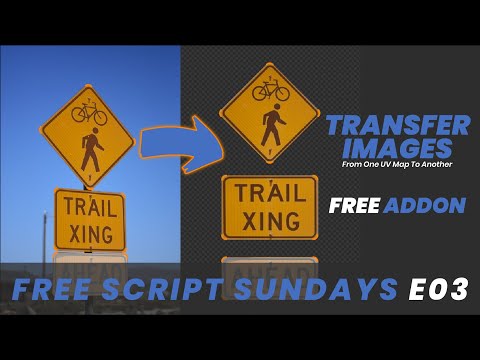
Without this tool, moving texture data between UV maps manually is a slow and error-prone process. With it, the same task takes a few clicks.
13. UV Maps+
Best for: Artists managing complex assets with many UV map slots
UV Maps+ is a free extension available directly from the Blender Extensions platform, fully compatible with Blender 4.2 and above. Blender normally limits how many UV maps you can actively edit in the UV Editor — this addon removes that barrier by letting you reorder UV maps, copy and paste UV data between maps, and exceed the standard eight-map limit.
It also includes a warning system that highlights UV maps in slots 9 and above that cannot be edited in Blender’s UV Editor, reminding you to reorder them before trying to work on them. It is a practical utility for anyone managing detailed models with multiple UV channels.
Install it free: Search for “UV Maps+” in the Blender Extensions platform under Edit → Preferences → Extensions.
Tips for Better UV Mapping in Blender 4.2 and Above
Getting the most out of these addons means using them alongside good UV habits. Here are a few practices that make a real difference:
Place seams deliberately before unwrapping. Where you put your seams determines how the UV islands unfold. Put them in natural breaks — along edges that would be hidden in the final model, at clothing seams on characters, or along the underside of hard surface objects.
Use the Speed Unwrapping method for architectural work. Blender’s built-in Smart UV Project is fine for quick results, but for architecture and hard surface models, combining it with UV Squares or manual seam placement gives much cleaner results.
Check texel density across your whole scene, not just individual objects. When you have multiple objects in a scene, their texel density should be consistent relative to each other. The Texel Density Checker addon handles this across multiple selected objects at once.
Take advantage of UDIM tiles for complex assets. Blender’s UV Editor supports UDIM workflows natively. For hero assets like characters or vehicles, UDIM gives you more texture space to work with across multiple tiles. UVPackmaster specifically supports UDIM packing, which is one of the reasons it is the go-to choice for production-level work.
Related Reading
If you want to improve your overall texturing and shading workflow alongside your UV work, these posts are worth reading:
- Speed up UV unwrapping in Blender
- Easy way to organise, apply, and reuse PBR textures in Blender
- How to add a transparent PNG texture image on top of a material in Blender
- Best material addons for Blender
- How to set up a video or image sequence texture in Blender
- How to project decals and images onto object surfaces in Blender
- Node Wrangler keyboard shortcuts
- Best Blender addons for modeling
- Best Blender addons for retopology
Keep This in Your Toolkit
UV mapping is one of those skills where the right tools make an enormous difference. A good UV layout saves time at every stage after it — texturing is cleaner, baking is more accurate, and the final render looks better.
This post is updated regularly as addons release new versions and as Blender itself continues to evolve. Bookmark it and check back when a new Blender version drops, since compatibility details and feature sets do change.
If you found this useful, share it with another Blender artist who is wrestling with UVs. And if there is an addon you rely on that is not on this list, or if you have a question about any of the ones listed here, drop it in the comments below — we read everything and often update the article based on reader feedback.
Subscribe to the blog to get notified when we add new addon guides and Blender tutorials.

What do you think?
Join the Conversation