How to Change Object Textures in Blender Without Rendering Again

You spent hours time rendering a scene. Then you notice the textures feel off. Maybe the client wants a different look. Re-rendering everything would cost you more time.
There’s a faster way.
In this guide, you’ll learn how to re-texture any Blender scene without starting your render from scratch. Follow along and try it yourself as you read.
What You’re About to Do
You will reuse your existing render and swap textures using compositing. This lets you make visual changes after rendering.
This works best when:
- Lighting is already correct
- Geometry doesn’t need changes
- You only want to update materials or colors
If that sounds like your situation, you’re in the right place.
Video Tutorial
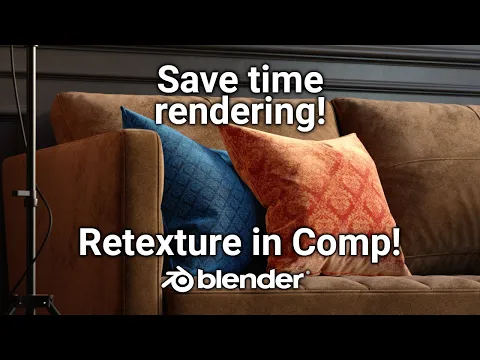
This workflow is demonstrated in a video tutorial by blenderisms, which shows how to swap textures in Blender’s Compositor using UV passes.
Step 1: Render Your Scene First
Start by rendering your scene as you normally would.
Make sure you:
- Save your render as an image or sequence
- Keep your project file intact
This render will act as your base.
If you need help speeding this up, check out how to speed up cycles render in Blender.
Step 2: Enable Render Passes
Before you move forward, enable the passes you’ll need.
Go to:
- View Layer Properties
- Enable passes like Diffuse Color, Normal, or Material Index
These passes give you control over different parts of your render.
Step 3: Switch to the Compositor
Open the Compositing workspace.
Then:
- Enable “Use Nodes”
- Enable “Backdrop”
You should now see your render connected to a Composite node.
Step 4: Isolate Materials
Use nodes like:
- ID Mask
- ColorRamp
These help you isolate specific parts of your render.
If you used Material Index in your scene, this becomes much easier. Each material can be selected and edited independently.
Step 5: Apply New Textures
Now the fun part.
For each isolated area:
- Add a new Image Texture node
- Adjust color using Color Balance or Hue/Saturation
- Mix it with the original render
You’re not changing the 3D object. You’re changing how it appears in the final image.
Step 6: Blend Everything Together
Use Mix nodes to combine:
- Original render
- New textures
Adjust blend modes and factors until it looks right.
Take your time here. Small tweaks make a big difference.
Step 7: Final Output
Connect your final node setup to:
- Composite node
- Viewer node
Then render the compositor output.
You now have a re-textured version of your scene without re-rendering the 3D scene itself.
Want to Push This Further?
Try combining this technique with other workflows:
- Easy Way to Organize, Apply, and Reuse PBR Textures in Blender
- How to Assign a Single Material to Many Objects in Blender
- How to Quickly add Overlays to Objects in Blender
Common Mistakes to Avoid
- Not enabling the right render passes
- Using low-quality textures
- Over-blending textures until they look unrealistic
If your render looks off, check your masks first.
Try It and Share Your Results
Open one of your old renders and test this method.
Did it save you time?
Did you get the result you wanted?
Drop your experience in the comments. If something didn’t work, ask your question. I’ll help you figure it out.
Keep Learning and Improving
If you found this useful, explore more Blender tips on the blog. You’ll find guides that help you work faster and get better results.
Share this post with someone who spends too much time re-rendering scenes.
And check back often. New tutorials go up regularly.

What do you think?
Join the Conversation