How to Create Wireframe Renders in Blender
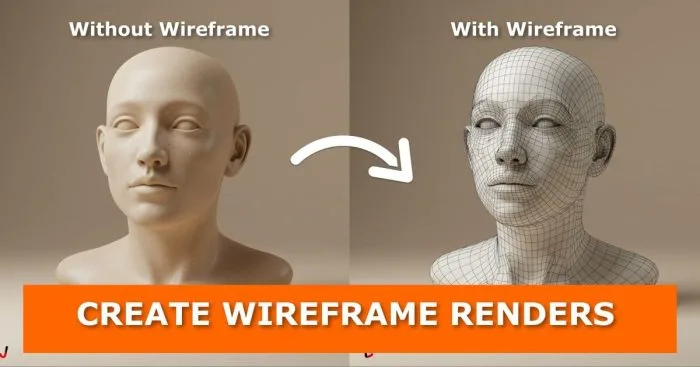
A clean wireframe render can do something a regular photo-realistic render simply cannot: it reveals the structure behind the art. Whether you want to showcase your topology for a portfolio, add a technical aesthetic to a product presentation, produce animated breakdowns of a character rig, or just create something visually striking, wireframe renders are one of those skills every Blender artist should have in their toolkit.
The challenge is that Blender offers several ways to get a wireframe render, and each one works differently, looks different, and fits different situations. Using the wrong method means either a low-quality result or an unnecessarily complicated setup for what you actually need.
This guide walks you through all three methods — from the fastest quick-preview approach to the most polished production-ready result — with full step-by-step instructions for Blender 4.2 and above. By the end, you will know exactly which method to reach for and why.
Got a question partway through? Drop it in the comments at the bottom — every question gets answered.
First: Why You Cannot Just Screenshot the Viewport
If you are new to Blender, your first instinct might be to turn on the wireframe overlay in the viewport and take a screenshot. You can do that — and it works for very rough reference — but it is not a render. It lacks proper anti-aliasing, the resolution is limited to your monitor, the lines are thin and hard to control, and it will not look clean at any decent output size.
The three methods below all produce actual renders or render-quality outputs. That is the key difference.
Video Tutorial
Method 1: Viewport Render — Fastest, Great for Previews and Animation
Best for: Quick previews, presentations, rough animation wireframe passes, internal client breakdowns
This method captures the viewport exactly as it looks — wireframe overlays and all — as a rendered image or animation. It is not a full Cycles or Eevee render; it uses the viewport’s display engine directly. That makes it extremely fast, and it works well for many practical purposes.
Step-by-Step
Step 1 — Enable the wireframe overlay. In the viewport header, click the Overlays dropdown (the overlapping circles icon). Enable Wireframe. You can adjust the percentage slider to control how strongly the wireframe appears, and the opacity to make it lighter or heavier. Experiment until it looks right for your purpose.
You can also change the Viewport Shading mode to Wireframe (press Alt + Z to toggle) for a pure wireframe look with no surfaces, or stay in Solid or Material Preview mode to show both the surface and the wireframe overlay together.
Step 2 — Customize which overlay lines appear. The default wireframe overlay includes edge lines, bone overlays, relationship lines, and other viewport decorations. Most of these you do not want in a wireframe render. Open the Overlays panel and turn off everything except what you need — typically just Wireframe, and optionally Edge Angle or Face Orientation if you want those shown.
Step 3 — Deselect everything for a clean result. Selected objects and elements in Blender show in a different highlight color. Press Alt + A to deselect everything before rendering. Otherwise you will get orange or white highlights on your selected elements that look unprofessional in the output.
Step 4 — Set up your camera view. Press Numpad 0 to look through the active camera. Make sure your composition is correct from this angle.
Step 5 — Render the viewport. Go to View → Viewport Render Image for a still, or View → Viewport Render Animation for a sequence. Blender captures the viewport directly as a render.
Important before rendering animation: Set your output path and format first. Go to Output Properties and set the file path and choose either a video format or PNG sequence. If you skip this, Blender may render to a temporary location you cannot find easily.
What to Expect
Viewport Render uses 8 samples — far fewer than a full Cycles render. The result is clean for a wireframe (since lines do not need high sample counts) but lacks the quality of a full path-traced render. For a pure wireframe output, 8 samples is usually sufficient. For a wireframe-over-surface composite, the surface detail will look rough compared to a full render.
The trade-off in plain terms: this method is fast and easy, but limited in output quality. It is perfect for internal review, topology breakdowns in a portfolio, and any time you need wireframe animation quickly.
Method 2: Freestyle Rendering — High Quality, Full Control Over Line Appearance
Best for: Portfolio-quality wireframe stills, print-ready outputs, stylized line renders, presentations where quality matters
Freestyle is Blender’s built-in non-photorealistic rendering engine. It analyses your scene’s geometry after the main render and adds a layer of procedurally generated lines on top. The result is sharp, scalable with resolution, and gives you detailed control over which edges are drawn and how they look.
Step-by-Step
Step 1 — Turn off the wireframe overlay. Before setting up Freestyle, go to Overlays and disable Wireframe if it is on. You do not want viewport overlay lines mixing with your Freestyle render output.
Step 2 — Enable Freestyle in Render Properties. Go to Render Properties (the camera icon). Scroll to the bottom of the panel and find the Freestyle section — it is off by default. Enable it. Two settings appear: Mode (leave on Parameter Editor) and Line Thickness in pixels. Leave both at default for now.
Step 3 — Create an override material. An override material is a single material that Blender applies to all objects in the scene during rendering, replacing their actual materials. This is what gives your wireframe that clean, uniform look — all surfaces become the same neutral color so the lines stand out clearly.
To create one: select any object in your scene, go to Material Properties, and click the + button to add a new material slot. Click New to create a material. Do not assign it to the object yet — just create it and give it a recognizable name like “Override_White.” Set the Base Color to a light grey or white.
Step 4 — Assign the override material in View Layer Properties. Go to View Layer Properties (the layer icon). Scroll down to find the Override section — this section only appears when Freestyle is enabled, so make sure you completed Step 2 first. In the Override tab, find Material Override and assign the material you just created. This tells Blender to render all objects using this single material instead of their assigned materials.
Step 5 — Configure Freestyle Line Set edges. Still in View Layer Properties, scroll down to find Freestyle Line Set. Blender has several edge types enabled by default — Silhouette, Crease, Edge Mark, and others. For a clean wireframe render, turn off all the default edge types first, then enable only Edge Mark. This means Freestyle will only draw edges that you have explicitly marked in Edit Mode.
Step 6 — Mark your edges. Select your object(s) and go into Edit Mode (Tab). Switch to Edge Select mode (press 2 — the key above W, not the numpad). Press A to select all edges. Then go to Edge → Mark Freestyle Edge (or right-click and find it in the Edge context menu). This marks every edge on the mesh as a Freestyle edge, so they will all appear in the render.
If you want to be selective — showing only certain edges, like the major structural loops rather than every single polygon edge — manually select just those edges and mark only them.
Step 7 — Adjust line thickness. Back in View Layer Properties under Freestyle Line Set, find the Line Style settings. For most scenes, a thickness of 0.3 to 0.5 pixels looks much more refined than the default of 1 pixel, which tends to look heavy and over-drawn. Adjust this based on your output resolution — thinner lines work well for large-format outputs; slightly thicker lines are better at smaller sizes.
You can also change the line color here. White lines on a dark background and black lines on a white or light background are both common choices depending on the look you want.
Step 8 — Render. Press F12 to render. Blender will first render the full scene with the override material applied, then generate the Freestyle lines on top. The two passes are composited automatically. The render takes longer than a viewport render, but the result is sharp, high-quality, and scales perfectly with resolution.
Exporting Freestyle Lines as SVG
One frequently missed feature: Blender includes a Freestyle SVG Exporter add-on that ships with the application. Enable it in Edit → Preferences → Add-ons by searching for “Freestyle SVG Exporter.” Once enabled, it adds an export section in Render Properties. After rendering, the SVG file is written to your output folder. This is useful for design work, motion graphics, and any context where you need scalable vector lines rather than a raster render.
Method 3: Grease Pencil Line Art Modifier — Most Flexible, Real-Time Preview
Best for: Production use, files you want to reuse across multiple projects, real-time preview while working, combined 2D/3D renders, animated wireframe breakdowns
This is the method that, once you understand it, often becomes your default for any serious wireframe render work. The Grease Pencil Line Art modifier reads your 3D geometry and generates strokes on a Grease Pencil object in real time — so you can see the wireframe in the viewport before you even render. It is also easy to copy between project files, and it gives you very fine control over which edges appear.
In Blender 4.2, there is a shortcut worth knowing: in the Add menu (Shift + A), you can now choose Grease Pencil → Scene Line Art, Collection Line Art, or Object Line Art directly. This creates a Grease Pencil object with the Line Art modifier pre-configured for your chosen source — much faster than the older workflow of adding a blank Grease Pencil object and then adding the modifier manually.
Step-by-Step
Step 1 — Create the override material (same as Method 2). If you already did this for Method 2, you can use the same material. If starting fresh, add a new material to any object, name it, set it to a light grey or white, and assign it as the Material Override in View Layer Properties → Override → Material Override. This gives your surfaces a clean uniform color so the lines read clearly.
Step 2 — Add a Grease Pencil Line Art object. Press Shift + A and go to Grease Pencil. Choose Scene Line Art if you want the modifier to cover all objects in the scene, Collection Line Art to target a specific collection, or Object Line Art to target a single object. For most wireframe setups, Scene Line Art or Collection Line Art is what you want.
Blender creates a Grease Pencil object with a Line Art modifier already attached.
Step 3 — Move the Grease Pencil object out of camera view. The Grease Pencil object itself has no visible geometry — it is just the container for the strokes. Move it somewhere out of the way (off to the side, or up above the scene) so it does not interfere with your composition. The strokes it generates will still appear correctly in the camera view.
Step 4 — Configure the Line Art modifier. Select the Grease Pencil object and go to Modifier Properties (the wrench icon). You will see the Line Art modifier. Key settings to configure:
- Source — if you chose Scene Line Art in Step 2, this is already set to Scene. For Collection Line Art, set the collection here. The Source determines which geometry generates strokes.
- Edge Types — similar to Freestyle, you will see multiple edge type toggles. Turn off the defaults and enable Edge Mark for clean wireframe lines. Or enable Contour for silhouette-only renders, which gives a clean outline look.
- Thickness — 1 to 2 pixels works well for most objects. For very small objects or large resolution outputs, adjust accordingly.
- Opacity — controls the transparency of the generated strokes. Leave at 1.0 for solid lines, reduce for a more subtle wireframe effect.
Step 5 — Set the stroke color. Select the Grease Pencil object and go to Material Properties. The Line Art modifier generates strokes using the active Grease Pencil material. Set the stroke color to black (for use with a white override material) or white (for a dark background). You can also set it to any color you want — colored wireframes on a dark background are a popular portfolio aesthetic.
Step 6 — Mark Freestyle edges on your mesh (for Edge Mark mode). Just like in Method 2, if you are using Edge Mark as your edge type, you need to mark the edges on your mesh. Go into Edit Mode on your target mesh(es), select all edges with A, and go to Edge → Mark Freestyle Edge.
Step 7 — Preview and render. You should now see the wireframe strokes appearing in real time in your viewport when you switch to Render Preview (Z → Rendered or Shift + Z). This is one of the key advantages of this method — you can see exactly what the render will look like before committing to a full render. Adjust thickness, opacity, and edge types while watching the result update live.
Press F12 to render the final image. The Grease Pencil strokes composite on top of the main render automatically.
Baking Line Art for Better Performance
If your scene is complex or the viewport feels sluggish with the Line Art modifier active, you can bake the strokes. Select the Grease Pencil object, go to Modifier Properties, and click Bake Line Art at the top of the modifier. This converts the real-time generated strokes into static baked keyframes, which are much lighter on the viewport. After baking, the modifier deactivates automatically. If you need to update the strokes (for example, after moving objects), click Clear Baked Line Art and re-bake.
Choosing the Right Method for Your Situation
| Situation | Best Method |
| Quick preview or internal review | Viewport Render (Method 1) |
| Fast wireframe animation | Viewport Render (Method 1) |
| High-quality portfolio still | Freestyle (Method 2) |
| SVG export for design or motion graphics | Freestyle + SVG Exporter (Method 2) |
| Real-time preview while working | Grease Pencil Line Art (Method 3) |
| Reusable setup across multiple project files | Grease Pencil Line Art (Method 3) |
| Complex multi-object scene wireframe | Grease Pencil Line Art (Method 3) |
| Animated wireframe breakdown of a rigged character | Grease Pencil Line Art with baking (Method 3) |
Combining Methods for Advanced Results
You do not have to choose just one method. For production work, combining Freestyle and Grease Pencil Line Art gives you overlapping flexibility — but be aware that using both simultaneously can produce duplicate lines on the same edges. The recommended approach is to use one or the other, not both at once, unless you are deliberately layering different edge types with different visual treatments.
A practical combination: use Method 3 (Grease Pencil Line Art) for the wireframe pass, render it on a separate View Layer, then composite it over a full Cycles render in the Node Compositor. This gives you independent control over the wireframe opacity, color grading, and blending mode without having to re-render the full scene if you want to adjust the wireframe look.
Common Problems and Fixes
Freestyle lines are not appearing in the render. Check that Freestyle is enabled in Render Properties (not just in the viewport overlay). Also confirm that the Override section is visible in View Layer Properties — it only appears when Freestyle is enabled. Check that Edge Mark is enabled in the Line Set, and that you have actually marked edges in Edit Mode.
The Line Art modifier is not showing strokes in the viewport. Make sure you have an active camera in the scene — Line Art calculates visibility based on the camera view. Also check that the Grease Pencil object is not hidden. Try switching to Rendered view mode (Shift + Z) to force the Line Art calculation.
The override material is not applying and objects still show their original materials. The Material Override only works when set in View Layer Properties → Override, not in Render Properties. Also confirm that Freestyle is enabled (the Override tab disappears if Freestyle is turned off).
Lines appear too heavy and look amateur. Reduce line thickness. For Freestyle, try 0.3px instead of 1px. For Line Art modifier, try 0.5 to 1px rather than the default 2px. Thin, precise lines almost always look more professional than heavy outlines.
The viewport is very slow with Line Art active. Bake the Line Art strokes as described in Method 3. Alternatively, reduce your viewport resolution temporarily while working, then restore it before rendering.
Taking Wireframe Renders Further
Once you are comfortable with the basics, here are some directions worth exploring:
Combine wireframe with color renders. Render your full scene normally, then overlay the wireframe at reduced opacity in the compositor using an Alpha Over node. This gives a partially transparent wireframe over the textured model — a popular look for product breakdowns and technical presentations.
Animate the wireframe appearing. With the Grease Pencil Line Art method, you can keyframe the opacity or use the Grease Pencil modifier stack to animate the build-on of lines over time. Combined with a camera that slowly orbits your object, this creates striking portfolio animations.
Change line color to match your brand or mood. The override material controls the surface color; the Line Art or Freestyle line color controls the stroke. Dark surfaces with bright-colored line strokes (neon green, electric blue) are a common aesthetic in tech and sci-fi presentations.
Use the Wireframe modifier instead. Blender also has a dedicated Wireframe modifier under Modifier Properties → Generate → Wireframe that converts your mesh into actual geometry following every edge. This is rendered like any other 3D object — useful when you want the wireframe to cast shadows, deform, or be composited more deeply into the scene.
Related Tutorials to Expand Your Rendering Skills
- How to Eliminate Noise, Grain, and Fireflies From Blender Renders
- How to Speed Up Blender Cycles Renders — 40+ Tips
- Blender Viewport Render — Fast Preview Techniques
- How to Create Clay Renders in Blender
- Create Realistic Glass Material in Blender Eevee
- Blender Glare Node for Cycles — Glow and Bloom Effects
- Blender Shadow Catcher — Complete Guide
- How to Render Transparent Animation Videos in Blender
- How to Render Transparent PNG Images in Blender
- An Easy and Quick Way to Post-Process Your Work in Blender
- How to Render an Animation as Video in Blender
- Wrap Your 3D Model in Plastic in Blender
- How to Add Notes in Your Blender File
- How to Use the Annotate Tool in Blender
- Tips to Make 3D Objects Look Massive in Renders
Put These Methods to Work in Your Next Project
Wireframe renders are one of those output types that always impresses when done well — and now you have three solid approaches to produce them cleanly in Blender 4.2 and above.
Start with Method 1 if you need something quickly. Move to Method 2 or 3 when you need the quality to hold up for a portfolio piece or client presentation. And once you have experimented with all three, you will develop a natural feel for which one fits which project.
Which method works best for your workflow? Have you tried combining wireframe and full renders in the compositor? Drop your experience, questions, or results in the comments — it is always interesting to see how different artists approach the same technique.
If this tutorial saved you time, share it with another Blender artist who is still screenshotting the viewport and wondering why it looks rough. And subscribe to the Gachoki Studios blog — new tutorials covering practical Blender skills are published regularly, and this page is updated whenever Blender introduces changes that affect these workflows.

What do you think?
Join the Conversation