Free Local AI Texturing Finally Gets Readable Text
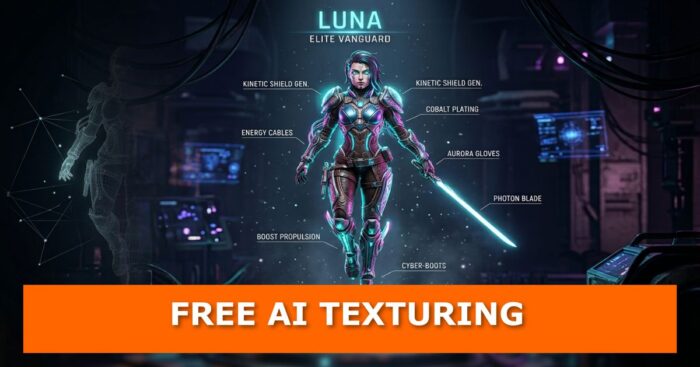
You can now texture AI-generated 3D meshes locally and for free using UltraTex in ComfyUI, and it runs on a GPU with as little as 6GB of VRAM. The model paints sharp text labels and detailed faces onto your mesh, two things Trellis 2’s built-in texturing has long struggled with. In the workflow demonstrated by PixelArtistry, the low-VRAM version peaked at roughly 6.8GB.
If you have been following the wave of local 3D tools, this is the missing piece. We already covered how a 6GB VRAM setup builds game-ready characters with free AI and how one photo can become a full 3D world. Geometry was the easy part. Texture quality was the weak link, and UltraTex goes straight at it.
What UltraTex Actually Is
UltraTex is an open-source research project from SIGGRAPH Asia 2026, and the weights are already public. You feed it two things: an untextured mesh and one reference image. It returns a textured mesh with a PBR set, meaning an albedo map plus a metallic-roughness map.
It does not care where the mesh came from. Trellis 2 output, Hunyuan models, or something you sculpted yourself all work. You can also keep your own UVs if you unwrapped the mesh by hand.
How It Works Under the Hood
- UltraTex renders your mesh from six different camera angles.
- FLUX.2 Klein, through the UltraTex loader, paints all six views at once so they stay consistent with each other.
- Those views are baked back onto the UVs of your mesh.
- You get the final textured model with PBR maps.
The ComfyUI nodes come from community developers, including Visual Bruno, who also built a low-VRAM GGUF version. This is a good example of AI tools quietly reshaping the 3D pipeline, one open-source node pack at a time.
Three Workflows, Pick Your GPU
PixelArtistry packaged an installer and three ready-made workflows on GitHub, so nothing needs to be installed by hand.
- Standard (6 views): needs about 12 to 16GB of VRAM. Dropping the resolution to 1024 can bring it down to 8 to 12GB.
- Advanced (10 views): adds four extra camera angles for better blending. Plan on 12 to 16GB.
- Low VRAM (GGUF): built for 6 to 8GB cards. It uses a quantized FLUX.2 Klein model, with Q4 as the default and Q5 or Q8 available if your card can handle them.
Setup in Plain Steps
Step 1: Download the installer
- Grab the ultratex.bat file from the PixelArtistry GitHub page.
- Linux and Mac installers are planned too.
Step 2: Drop it in the right folder
- With ComfyUI Easy Install, use the add-ons folder.
- With ComfyUI Portable, place it in your ComfyUI directory.
Step 3: Run it
- Double-click the file. It checks your ComfyUI version, installs the pinned node versions, and downloads any missing models.
Step 4: Restart ComfyUI and load a workflow
- Open the Pixel Artistry folder under workflows and choose one of the three.
Step 5: Set your inputs
- Upload a reference image, paste the path to your mesh, and remove the double quotes around the path.
- Choose a UV mode: generate new UVs or keep your existing ones.
- Hit run.
If ComfyUI refuses large meshes, there is a quick fix. Edit your launcher file and add a max upload size flag set to 2K, then restart. That lifts the default 100MB upload limit.
The Results
In the standard test on an RTX 5080, the first run took 496 seconds, which includes loading all the models. Later runs are faster because everything is cached. The FP8 model alone sits around 9GB.
Side by side with the original Trellis 2 texture in Blender, the difference showed up in three places:
- Text labels came out correct.
- The face had proper eyes and definition.
- The back of the model looked noticeably better.
The 10-view workflow added more precision, and splitting a character into parts, such as a separate head, gave even finer detail. On a hard-surface mesh, text and smudges were clearer, though tiny details like a watch face stayed a bit blurry. For games, that is more than enough. The output also includes a metallic-roughness map you can plug straight into a shader, and you can raise the bake to 2K.
The standard run left a shadow on the character’s face. The low-VRAM GGUF run did not, which was a pleasant surprise.
Tips for Cleaner Textures
- Make sure your mesh has a material and a UV set, with no overlapping or mirrored islands. If UVs are your weak spot, our guide to speeding up UV unwrapping in Blender helps.
- For huge meshes, reduce the polygon count to roughly 0.5 to 1 million faces first. It runs faster and gives fewer seams.
- Use an evenly lit reference image, because lighting can get painted into the color texture.
- Line the reference up with the front camera. The back view is guessed by the model.
- Once textured, organize and reuse your PBR textures in Blender.
Licensing Note
The UltraTex code and both node packs use the MIT license. FLUX.2 Klein base is under Black Forest Labs’ non-commercial license, but the company says it claims no ownership of the outputs. This is not legal advice, so read the terms yourself before using results commercially.
Watch the Full Workflow

FAQ
Can UltraTex run on 6GB of VRAM? Yes. The GGUF workflow with the Q4 model is built for 6 to 8GB cards, and the demo used about 6.8GB.
Does UltraTex only work with Trellis 2 meshes? No. It accepts meshes from Trellis 2, Hunyuan, or your own models, and can keep your existing UVs.
Can I use the textures commercially? The code is MIT licensed, and Black Forest Labs claims no ownership of outputs, but FLUX.2 Klein base is non-commercial. Check the license yourself.
Does it give me PBR maps? Yes, an albedo map plus a metallic-roughness map.
Texture Your Next Idea Before Your GPU Cools Down
Free, local, and finally good at lettering: UltraTex lowers the bar for anyone building game assets on a modest card. Download the installer, test it on one of your own meshes, and compare it with your current Trellis 2 results. Then tell us in the comments what you would texture first, and which VRAM tier you are running. If you want more tools like this, our AI core concepts explainer is a good next read.

What do you think?
Join the Conversation