Overview
This guide documents four Blender lighting techniques used to increase control, reduce render cost, and improve visual clarity in 3D scenes. These methods integrate cleanly with common rendering optimizations discussed in guides on how to speed up Cycles render in Blender and how to eliminate noise, grain, and fireflies from renders.
Key Takeaways
- Light linking lets you control which objects a light source affects.
- Gobos create patterned shadows using image textures or procedural nodes.
- Fake god rays simulate volumetric beams without heavy render times.
- Directional lighting shortcuts streamline light placement and constraints.
Video Tutorial

Embedded Video Tutorial Context
Video Source
BlenderVitals: “4 Lighting Tricks in Blender That Feel Illegal To Know”
Contextual Summary
The video demonstrates practical use of light linking, gobos, fake god rays, and directional shortcuts. These techniques align with broader lighting tool ecosystems, including curated lists of addons for lighting in Blender.
Technique 1: Light Linking for Targeted Illumination
Definition
Light linking restricts a light source to affect only selected objects in a scene.
Why It Matters
Light linking prevents unwanted light spill and reduces manual masking during compositing. It pairs well with setups that rely on invisible light sources, as explained in the guide on creating an invisible light emitter in Blender.
How to Apply
- Select the light source.
- Open the Light Linking panel.
- Assign specific objects or collections.
- Exclude all non-target geometry.
Explicit Outcome
This technique improves lighting precision and reduces correction work during post-processing, especially when combined with node-based effects such as the Blender Glare node for Cycles glow and bloom.
Technique 2: Gobos for Structured Shadow Control
Definition
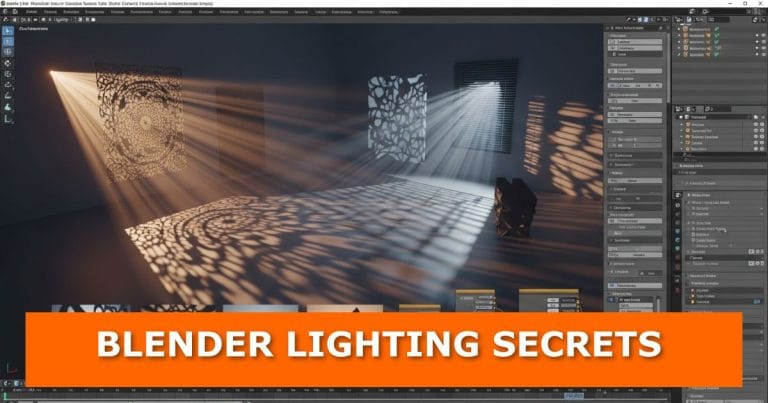
A gobo is a texture or shape placed in a light’s path to break illumination into patterns.
Why It Matters
Gobos add depth cues and surface variation without adding geometry. They complement material-focused workflows, such as those used to create realistic glass materials in Blender Eevee or layered surface setups described in how to add more than one material to a mesh in Blender.
Professional lighting techniques are essential not only for static renders but also for creating compelling animation projects where proper illumination brings characters and scenes to life.
How to Apply
- Enable nodes on the light.
- Add an Image Texture node.
- Connect the texture’s alpha to the light’s strength input.
- Insert an Invert node if shadow polarity needs adjustment.
Explicit Outcome
Gobos improve perceived realism by introducing controlled irregularity in light distribution, similar to environmental effects used when simulating rain in Blender or shaping atmospheric scenes.
Technique 3: Fake God Rays Without Volumetrics
Definition
Fake god rays simulate volumetric light beams using geometry and transparency instead of volume shaders.
Why It Matters
True volumetrics increase render time and noise. This approach works well alongside post-processing techniques covered in an easy and quick way to post-process your work in Blender.
How to Apply
- Add a cone or elongated mesh aligned with the light direction.
- Apply a transparent or gradient material.
- Adjust opacity falloff to match beam intensity.
Explicit Outcome
This method balances visual impact with render efficiency and integrates smoothly with transparent output workflows such as rendering transparent PNG images in Blender.
Fake god rays are particularly valuable in visual effects work, where achieving cinematic lighting quality while maintaining render performance is critical.
Technique 4: Directional Lighting Shortcuts
Definition
Directional lighting shortcuts use constraints and alignment tools to aim lights quickly and consistently.
Why It Matters
Manual rotation slows iteration. Directional constraints align closely with camera-based workflows, including techniques outlined in the quickest and easiest way to point a camera in Blender and how to make a camera the active one in Blender.
How to Apply
- Add a Track To or Damped Track constraint to the light.
- Assign a target object or empty.
- Adjust distance and intensity without re-aiming.
Explicit Outcome
This technique speeds up lighting iteration and reduces alignment errors, especially in animated scenes that also rely on motion blur in Blender.
Related Guides
- Why some faces appear dark on a mesh in Blender and how to fix it
- Blender viewport render workflows
- How to create clay renders in Blender
Each guide expands on lighting control, scene evaluation, or diagnostic techniques referenced in this article.
Concept Relationships Explained
- Light linking supports selective illumination, which simplifies compositing and reduces render corrections.
- Gobos modify light shape, which increases depth perception and surface readability.
- Fake god rays replace volumetrics, which lowers render cost while preserving visual cues.
- Directional shortcuts reduce setup time, which improves workflow speed during iteration.
Conclusion
These four lighting techniques address common production constraints in Blender. Each method solves a defined problem and integrates with established modeling, material, and rendering workflows documented across related guides on the site.
Whether you’re creating 3D content for web design projects or standalone renders, mastering these lighting fundamentals ensures your work maintains professional visual standards across all applications.
Used together, they improve control, efficiency, and visual consistency across scenes.