Cut Perfect Circular Holes in Blender

You are modeling a hard-surface object — a panel, a speaker grille, a sci-fi prop, a mechanical part — and you need a circular hole. You cut one, it looks fine in wireframe, then you apply a Subdivision Surface modifier and the mesh collapses around the hole like a deflating balloon. Or you use a Boolean and end up with a tangled mess of triangles and N-gons that refuses to shade correctly.
Sound familiar? The problem is almost never the hole itself. It is the method you used to make it, and the topology it left behind.
In this guide, I walk you through four methods for cutting clean circular holes in Blender 4.2 and above — from a quick single-hole technique that takes seconds, to approaches that handle curved surfaces and complex objects without breaking your mesh. Each method has a specific use case, and knowing which one to reach for saves you an enormous amount of time and frustration.
Got a question partway through? Drop it in the comments at the bottom — every question gets answered.
Why Your Circular Holes Are Probably Messy
Before jumping into the methods, it is worth understanding why circular holes cause topology problems in the first place.
When you cut a circle into a flat quad mesh, you are introducing a curved boundary into geometry that was originally made of straight, evenly distributed edges. The challenge is connecting that circular boundary to the surrounding quads in a way that keeps edge flow clean, avoids N-gons (faces with more than 4 sides), and does not create poles with too many edge connections.
The most common mistakes:
- Cutting a hole with the Knife tool and leaving N-gons around the boundary
- Using the Boolean modifier without any cleanup, resulting in a tangle of triangles
- Deleting a circle of faces selected with no regard for the surrounding geometry
- Placing a hole on a mesh that does not have enough resolution to support it cleanly
Good topology around a circular hole means mostly quads, predictable edge flow, and a ring of supporting geometry close to the hole’s edge to keep it crisp when subdivision modifiers are applied.
Video Tutorial
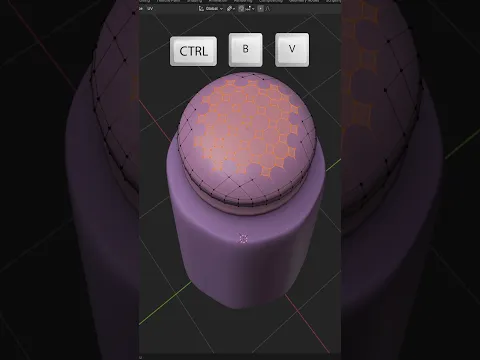
Method 1: The Vertex Bevel Technique (Best for Single Holes, Fast)
This is the method from the transcript — and it is genuinely the cleanest, fastest approach for cutting a single circular hole at a vertex on a flat or moderately curved mesh. It works by transforming a vertex into a circular opening using the Vertex Bevel tool, then selecting and deleting the face regions that form the hole.
When to use this: A single hole at a known vertex location on a flat surface, when you want clean quad topology with no extra steps.
Step-by-Step
Step 1 — Select the vertex where you want the hole. In Edit Mode, switch to Vertex Select mode and click the vertex at the centre of where you want the hole to appear. This vertex will become the centre of your circular opening.
Step 2 — Vertex Bevel the vertex. Press Ctrl + B to activate the Bevel tool, then immediately press V to switch to Vertex Bevel mode. Move your mouse outward slightly — do not confirm yet.
Step 3 — Set the bevel properties. After moving your mouse to get some bevel width, scroll the mouse wheel to increase the segment count, or confirm the bevel first and then adjust it in the Last Operation panel (bottom-left of the viewport, or press F9 to bring it up). Set:
- Segments: 5 — this creates a 5-sided polygon that, with the shape value reduced, becomes close to circular
- Shape: 0.1 — this pulls the bevel inward, rounding the corners tightly into a near-circle. A shape of 0.0 is a perfect flat polygon; lowering it toward 0.1 pushes the vertices outward to form a rounder shape
- Width — adjust this to control the overall diameter of the hole. A larger width creates a bigger hole
A note on segments and shape: With 5 segments and a shape of 0.1, the resulting polygon reads as a clean circle in most contexts. If you need a rounder hole for close-up renders or curved objects, increase segments to 8 or 12 and keep the shape around 0.1 to 0.2.
Step 4 — Select all the circular face regions. After the bevel, you will see multiple small faces inside the circular boundary. Click one of those interior faces to select it. Then press Shift + G and choose Face Regions from the menu. This tells Blender to select all faces that belong to the same topological region — meaning all the interior faces of your circular cut get selected at once, no matter how many there are.
Step 5 — Delete the selected faces. Press X and choose Faces. The interior faces are gone, leaving a clean circular opening with a well-defined boundary edge loop.
What you are left with: a circular hole with a clean ring of quads flowing outward from the boundary, ready for subdivision, smoothing, or further modeling.
Method 2: Loop Tools — Circle (Best for Even, Mathematically Round Holes)
The LoopTools add-on ships with Blender and is available in Blender 4.2 — you just need to enable it. Its Circle function takes any selection of vertices and redistributes them into a perfect circle. Combined with an Inset, this gives you a round hole with even vertex spacing that the Vertex Bevel method cannot always match.
When to use this: When you need a mathematically precise circle, particularly for 3D printing, product visualization, or any context where visual perfection of the hole’s roundness matters.
Enable LoopTools
- Go to Edit → Preferences → Add-ons
- Search for LoopTools (or Mesh: LoopTools)
- Enable the checkbox
- Save Preferences
Once enabled, LoopTools appears in the right-click context menu in Edit Mode and also in the Sidebar (N panel) → Edit tab.
Step-by-Step
Step 1 — Inset a face where you want the hole. In Edit Mode, select the face where you want your hole. Press I to Inset. This creates a concentric inner face. The inner face will become the boundary of your circular hole — make it roughly the size you want the hole to be.
Step 2 — Select the inner face’s vertices. Select all the vertices of the inset face (you can click the face in Face Select mode, then press Ctrl + V to switch to the vertex selection for those vertices, or just go to Vertex Select mode with the face already selected to get the boundary vertices).
Step 3 — Run LoopTools → Circle. Right-click to open the context menu, go to LoopTools → Circle. Alternatively, find it in the N panel under Edit → LoopTools. Click Circle.
Blender redistributes the selected vertices into a perfect mathematical circle. The spacing becomes even and the shape becomes geometrically round.
Step 4 — Delete the inner face. Select the inner face (now sitting inside the circular vertex loop) and delete it with X → Faces.
Result: a perfectly round circular hole with evenly spaced vertices, backed by clean quad topology from the surrounding inset.
Method 3: Boolean Modifier (Fastest, Needs Cleanup)
The Boolean modifier is the most straightforward approach — you create a cylinder, use it to cut through your mesh, and delete the cutter object. It is the fastest method when you need many holes quickly, but it almost always requires some cleanup afterward because Booleans introduce triangles and N-gons at the intersection.
When to use this: Concept modeling, hard-surface work where you will use Shade Smooth with Auto Smooth rather than Subdivision Surface, or any situation where speed matters more than perfectly clean topology.
Step-by-Step
Step 1 — Add a cylinder as your cutter. Press Shift + A → Mesh → Cylinder. In the Last Operation panel (F9), set:
- Vertices: 32 or 64 — more vertices means a rounder hole edge. 32 is typically enough; 64 for close-up renders
- Radius — set this to the size of hole you want
- Depth — make it tall enough to completely pass through your target mesh
Step 2 — Position the cutter. Move and rotate the cylinder so it passes cleanly through the face where you want the hole.
Step 3 — Apply transforms. Select both objects and press Ctrl + A → All Transforms. This ensures the Boolean calculation uses correct world-space dimensions.
Step 4 — Add the Boolean modifier to your main mesh. Select your main mesh. Go to Properties → Modifier Properties → Add Modifier → Boolean. Set the operation to Difference and set the Object to your cylinder cutter. Under Solver, choose Exact — this produces cleaner intersection geometry than the Fast solver in most cases.
Step 5 — Apply the modifier. Click Apply in the modifier stack.
Step 6 — Delete or hide the cutter cylinder. Select the cylinder and press X to delete it, or move it to a separate collection and hide it if you want to keep it for future edits.
Step 7 — Clean up the topology. Enter Edit Mode. Use Mesh → Clean Up → Merge by Distance to remove any duplicate vertices at the cut edges. Then manually dissolve any unnecessary edge loops around the hole, and add a supporting loop cut (Ctrl + R) close to the hole’s edge if you plan to use Subdivision Surface — this keeps the hole crisp under subdivision.
Pro tip for Boolean cleanliness: Before applying the Boolean, make sure both objects have Apply Scale (Ctrl + A → Scale) applied. Booleans on scaled objects produce worse results. Also, using the Exact solver instead of Fast generally produces fewer internal triangles.
Method 4: Knife Project (Best for Holes on Curved Surfaces)
The Knife Project tool lets you project the outline of one object onto another and use it as a cutting path. This is the cleanest approach when you need a circular hole on a curved surface — like the side of a cylinder, a sphere, or any non-flat mesh — where the Vertex Bevel and Inset approaches do not work well because the surface is not flat.
When to use this: Holes on curved surfaces, complex organic shapes, or any situation where the hole needs to follow the surface’s contour.
Step-by-Step
Step 1 — Add a circle mesh as your cutting guide. Press Shift + A → Mesh → Circle. Set the vertex count in the Last Operation panel — 16 to 32 is usually enough. Scale and position the circle so it sits in front of the curved surface where you want the hole, facing the surface directly (from the top-down view or front view depending on your surface orientation).
Step 2 — Select both objects. In Object Mode, first click your curved mesh, then Shift-click the circle object. The circle must be the active object (last selected, shown with a lighter outline).
Step 3 — Enter Edit Mode on the curved mesh. Tab into Edit Mode. Both the mesh and the circle’s outline will be visible.
Step 4 — Run Knife Project. Go to Mesh → Knife Project in the header menu, or press F3 and search for Knife Project. Make sure you are in the correct viewport orientation (looking straight at the surface) when you run it — Knife Project cuts along the direction of your current view.
Blender traces the outline of the circle onto the surface of your curved mesh, creating a ring of new vertices and edges that follows the surface’s curvature.
Step 5 — Select and delete the inner faces. The projected circle creates a boundary on the surface. Select all the faces inside that boundary and delete them with X → Faces.
Step 6 — Clean up as needed. Run Merge by Distance to remove any duplicate vertices. Add supporting edge loops around the hole if you plan to use Subdivision Surface.
Choosing the Right Method for Your Situation
| Situation | Best Method |
| Single hole on a flat mesh, fast workflow | Vertex Bevel (Method 1) |
| Mathematically perfect circle, even spacing | LoopTools Circle (Method 2) |
| Many holes quickly, concept stage | Boolean Modifier (Method 3) |
| Hole on a curved or organic surface | Knife Project (Method 4) |
| Final production mesh, needs subdivision | LoopTools or Vertex Bevel + supporting loops |
Keeping Your Holes Clean Under Subdivision
No matter which method you use, circular holes in a subdivided mesh require supporting edge loops close to the boundary edge of the hole. Without them, the Subdivision Surface modifier rounds and softens the edge of the hole, making it look like a pinched or collapsed opening rather than a crisp cut.
After creating your hole:
- In Edit Mode, click the edge loop that forms the boundary of your hole
- Press Ctrl + R to add a Loop Cut
- Slide it close to the boundary edge — this tells the subdivision modifier to keep the edge crisp
- Repeat on the other side of the hole boundary if needed
The tighter the supporting loops are to the boundary edge, the sharper and crisper the hole will look under subdivision. This is the most commonly missed step, and the one that separates clean professional hard-surface models from ones that look slightly off.
You can also use Bevel Weight on the hole’s boundary edges combined with the Bevel Modifier (set to use Bevel Weight as the limit method) for a non-destructive, adjustable version of the same approach.
Common Problems and How to Fix Them
The hole looks angular, not round. Increase the segment count. In the Vertex Bevel method, try 8 segments instead of 5. In the Boolean method, increase the cylinder’s vertex count to 64. More vertices always produces a rounder result.
The mesh shades with dark patches or pinching around the hole. This is almost always a topology problem — N-gons or triangles near the hole boundary. Go into Edit Mode, use Overlay → Face Orientation to check for issues, or use Select → Select All by Trait → Faces by Sides to find faces with more than 4 sides and fix them manually. Also check for flipped normals with Overlay → Face Orientation — blue is outward-facing, red is inward-facing.
The Subdivision Surface modifier is collapsing the hole. You are missing supporting edge loops. Add loop cuts close to the boundary edges of the hole as described above.
The Boolean left a jagged edge. Apply scale to both objects before running the Boolean (Ctrl + A → Scale). Use the Exact solver. After applying, run Merge by Distance and manually clean up any remaining triangles with the Dissolve Edges or Merge tools.
The hole is in the wrong place and I want to move it. If you used the Vertex Bevel method and have not done anything else yet, you can undo back to the original vertex position and re-place it. If the hole is already created, selecting and moving the boundary loop in Proportional Editing mode often works for small adjustments on flat surfaces. For significant relocations, it is usually faster to fill the hole (select the boundary, press F to fill, then adjust topology) and cut a new one.
Related Tutorials to Sharpen Your Modeling Skills
Once you are comfortable with circular holes, these guides from the Gachoki Studios blog will push your modeling skills further:
- How to Fix Bevel Overlap Issues in Blender
- How to Fix Extrusion Issues in Blender
- Blender Extrude Tricks
- Straighten Loop Cuts in Blender
- How to Maintain Sharp Edges When Using Subdivision Surface Modifier in Blender
- How to Create Perfectly Curved Objects in Blender
- Clean Up Text Topology in Blender
- How to Reduce Geometry on a Mesh in Blender
- How to Remove Double and Overlapping Vertices in Blender
- How to Convert Tris to Quads in Blender
- Why Some Faces Appear Dark on a Mesh in Blender and How to Fix It
- Blender Spin Tool
- Best Blender Addons for Modeling
- How to Create Wireframe Renders in Blender
- Speed Up UV Unwrapping in Blender
Build the Habit, Not Just the Skill
The biggest jump in your modeling quality will not come from learning one technique. It will come from developing the habit of thinking about topology before you start cutting — asking yourself what modifier stack this mesh needs to survive, what the edge flow should look like, and which method leaves you the cleanest result for your specific use case.
The four methods in this guide cover the vast majority of circular hole situations you will encounter. Practice each one on a test mesh before applying it to your real project, and you will quickly build an intuition for which approach fits which scenario.
If this guide helped you, share it with another Blender modeler who is still fighting with messy topology. And if you have a specific situation that these methods did not cover — an unusual surface shape, a specific modifier setup, or a workflow you cannot get to work — ask it in the comments below. It might become the next addition to this guide.
Subscribe to the Gachoki Studios blog for more practical Blender tutorials. New content is published regularly, and every post is kept current with the latest Blender versions.

What do you think?
Join the Conversation